How to Fix a Dead Kindle Using Manual DIYs and Pro Tips?
Fact-checked and reviewed in accordance with our Editorial Policy
Many times, it so happens that your Kindle ceases to work all of a sudden, and you are struck by fear that all your books will now be gone after such a mishap. Here, in this blog, we will be explaining how to fix a dead Kindle using manual troubleshooting techniques. We will also talk about an intelligent backup solution so that you can keep reading your books even in the most unfortunate case of your Kindle device failing despite all efforts to fix it.
MAIN POINTS TO LEARN
- A dead Kindle is usually a result of some battery issue or software-related problem.
- Simple troubleshooting techniques, such as charging & restarting, tend to solve most such issues.
- There are advanced reset ways that can bring the Kindle device back to life.
- There is a tool available that helps you keep accessing your books in several alternative formats even if Kindle stops working.
Has this ever happened to you? Upon picking up your Kindle device, you pressed the power button, but nothing really happened. There was no screen, no light, just plain silence! As per a report by Amazon Device Support, many such Kindle device problems are somehow related to battery drains or software freezes, and are not actually device failures.
Q: Why is it happening that my Kindle device is not turning on at all?
A: This might be happening because your device is fully discharged, it is frozen, or maybe it is facing some minor software glitch.
Q: Can a totally dead Kindle be completely fixed at home?
A: Yes, in most such situations, simple troubleshooting steps such as charging/restarting mostly solve the problem at home only.
Why Learn How to Revive a Dead Kindle?
You are most likely to face the need to learn these fixes in situations as given below:
- Kindle screen becomes blank & totally unresponsive.
- When the Kindle is completely dead after a lengthy period of inactivity.
- Also, when the Kindle device is not charging even after you have plugged it in.
- It tends to freeze on the logo screen.
- When the power button of your device stops responding.
These are some of the most common issues faced, and most people panic unnecessarily. Here’s the good news that many of these problems could be tackled manually.
How to Fix a Dead Kindle Manually?
Manual workarounds are possible to fix a dead Kindle, and these might work well for small issues. Also, such ways are free to try and easy to perform with no technical skills needed.
1. Try Checking Your Charging Basics First
At times, the trouble comes due to a simple reason of a drained battery. Perform the steps given below:
- You need to use the original Kindle charging cable.
- Try plugging into a wall adapter (and not a laptop USB).
- Now, leave the device charging for at least thirty to sixty minutes.
- Then, look for the LED light or the battery icon.
Value Tip: If the battery has been fully drained, it will take some time for the sign to appear.
2. Try Performing a Hard Restart
If your Kindle has been frozen, then you might need to do a force restart. You can do this by following these steps:
- Firstly, press & hold the power button of your device.
- Now, keep holding this for at least forty seconds.
- Then, release the button when the screen flashes/restarts.
Such a process tends to fix most of the software glitches.
3. You Can Try a Different Cable/Adapter
How to revive a dead Kindle? Well! Your charging accessories could be faulty. Try doing this workaround with the steps mentioned underneath:
- First of all, replace your USB cable.
- Also, try another wall adapter.
- Additionally, clean your charging port gently.
See if these steps work to fix your dead Kindle eBook.
4. Try Resetting the Device (This Is an Advanced Step)
If nothing seems to work in your case, then resetting might help. You can do this as follows:
- First of all, charge your Kindle device fully.
- Then, press & hold the power button for at least forty seconds.
- Now, wait for a reboot to fix dead Kindle.
If accessible:
- You may go to Settings → Device Options → Reset
5. Let Your Device Charge Overnight
If you have not used your Kindle device for months, then the battery might be deeply discharged. So, perform the following steps:
- First of all, plug into a wall charger.
- Now, leave the device overnight (eight to twelve hours at least).
- And then, in the morning, try turning on the device again, and see if the problem still persists or is solved.
Challenges Faced with Manual Troubleshooting
The manual ways would work for most minor issues, but they fall short for greater challenges, as follows:
- Such tricks might not work in case of hardware damage. Such ways can’t resolve internal hardware failure.
- These are time-consuming, trial-and-error techniques.
- There is a risk of data loss if you reset the device.
- There won’t be any revival if your Kindle storage has been corrupted.
- You won’t regain access to your books if your Kindle device does not turn on.
- Such steps need patience to undertake multiple attempts.
What to Do If Your Kindle Still Does Not Work?
If all manual troubleshooting methods fail somehow, it is quite likely that your device is permanently damaged. But watch out! Your books do not have to be lost forever! This is exactly when an intelligent backup solution helps in case the Kindle completely dead.
Keep Reading Your Books Even Without Kindle!
Your Kindle device might fail, but your books should not be stuck with it. You can prevent the loss! If Kindle stops working, converting your EPUB ebook files into varied formats, such as PDF, helps you keep reading your books on any other device without losing complete access to them.
The BitRecover EPUB Converter Wizard is a backup solution that helps you in converting & storing EPUB ebook files into various formats, such as PDF/DOC/TXT, etc., as a preventive measure, so that you can easily read your books anywhere (on mobiles, laptops, or tablets) even without a Kindle with complete freedom of ongoing accessibility.
Prime Features of the Tool
- Standalone, offline, and desktop-based solution.
- Dual selection modes and folder preview option for bulk conversion.
- 17+ different saving options to let the user do all with their Kindle files.
- Ensure data safety, accuracy, and reliability throughout the process.

- Have an easy-to-use interface with advanced options loaded in it.
- File saving destination option for quick data access and management.
- Around-the-clock customer support and feature customization option, if required.
- Works on all the latest editions of the Windows OS.
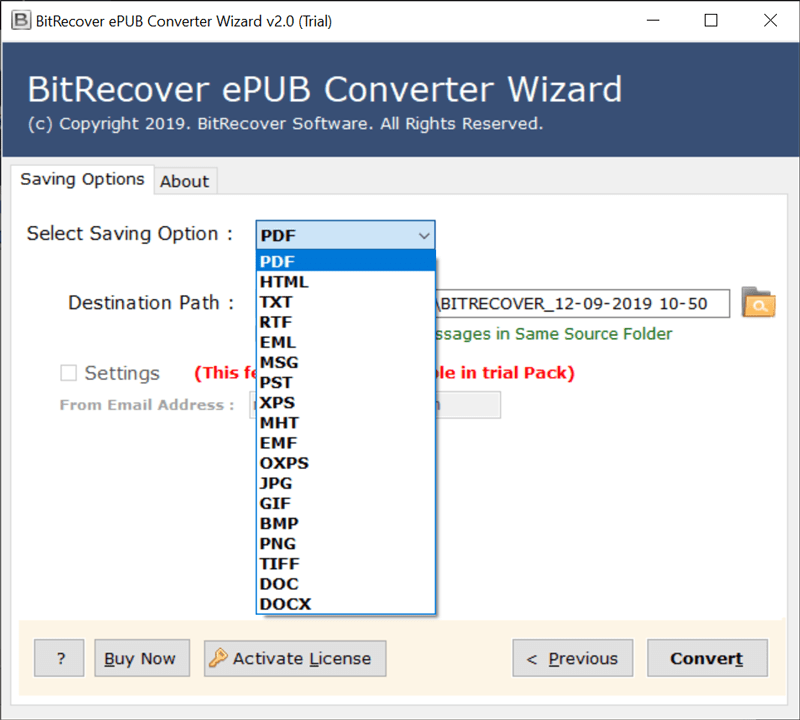
Working Steps: Run the tool, select Kindle files, choose the saving option, select export destination, and click on Convert to finally to do the conversion.
Relevant Questions Asked Often
People are usually inquisitive, which is, in fact, good. So, we make it a point to answer all the queries promptly.
1: How do I revive a dead Kindle?
You must charge the device for at least one hour and then do a hard restart by holding the power button for at least forty seconds.
2: How long does a dead Kindle take to charge?
This would mostly take thirty minutes to show signs of charging & around four hours for a complete charge.
3: How long does a dead Kindle take to turn on?
A dead Kindle device might take thirty seconds to a few minutes to turn on after pressing the power button, specifically if it was drained completely.
4: How to charge a Kindle when the battery is dead?
You should make use of the original cable, then connect it to preferably a wall charger, and then leave that plugged in for at least thirty to sixty minutes before attempting to turn it on.
Wrapping Up
Learning how to fix a dead Kindle saves your valuable time, mounting stress, & even invested money. Most such troubles can be solved easily with simple troubleshooting techniques. However, if your device totally fails, then it is wise to have access to your books in other formats, which avoids total loss as a backup would be there, and your reading journey would never stop, and also, your reading habit won’t be affected.
Read Next: Fix Kindle Error e999 Using Easy Ways
About the Author

