Export Contacts From Salesforce Step by Step

Published: January 21st, 2026 • 5 Min Read
If you want to export contacts from Salesforce while keeping your workflow fast? then you are in the right place! This guide covers multiple methods to export and download your Salesforce contact data efficiently.
Businesses manage their customers’ data with heart; they never disappoint any customer while managing the contact management process. Salesforce stores hundreds or thousands of contacts that help in sales growth, marketing, and communication. But the main problem arises when a user wants to export contacts from Salesforce.
The main reason behind this export is to use them in other platforms such as Excel, Outlook, smartphones, CRMs, etc. Users often face issues like file formats, sync issues, limitations, missing fields, and large contact lists that make exporting tasks difficult. So, let’s begin with the blog to easily resolve this issue without losing any data fields.
Why Do We Export Contacts From Salesforce?
We have shared some of the most common reasons for exporting contacts from Salesforce:
- Data Migration: The foremost reason is to share the data to other platforms, such as exporting contacts from Salesforce to Excel, Outlook, Gmail, Android, etc.
- Backup & Security: Organisations often export Salesforce contacts to create a local backup, ensure safe data, prevent accidental deletion, or address technical failures.
- Data Analysis: The process of exporting contacts from Salesforce helps to analyse customer behaviour, performance insights.
- Data Cleanup: Also, exporting contacts allows users to review databases, find mistakes, duplicates, and keep the CRM accurate.
Tips to Avoid Errors
- Always check permissions before starting the export process.
- Clean your contacts by removing duplicates and incorrect entries.
- Choose the right format to export the contacts.
- Try to export in small batches if the contact list is huge.
- Always keep a backup copy before migrating contacts.
Manual Methods to Export Contacts from Salesforce
There are some manual methods, which are available for free in your computer system. By following these simple methods you can easily extract contacts from Salesforce. Salesforce offers built-in functions that allow you to export contact list from Salesforce in a CSV file format. Below are the three manual methods provided by Salesforce for data extraction:
Method 1: Export contacts from Salesforce using Data Export Tool
- Firstly, login to your Salesforce account.
- Then go to setup > Data Export.
- Now, click on Export Now.
- After that, click the contacts checkbox.
- And, choose the CSV format.
- Lastly, click Start Export and download file.
Method 2: Export contacts list from Salesforce using Data Loader
- Initially, install the Salesforce data loader tool.
- Now, open the tool > Select Export.
- Then, login with Salesforce credentials.
- Afterwards, choose Contact Object.
- Later on, select the saving location.
- In the end, run export.
Method 3: Migrate contacts from Salesforce via Reports
- In the beginning, open the Reports tab.
- Now, create a New Report > Select Contacts & Accounts.
- After that, add the fields you want to export.
- Lastly, run the report, click Export > choose CSV.
The manual method can export contacts from Salesforce, but it restricts you to convert your CSV file into other flexible file formats such as vCard or PST which can be further used . So, we have provided you with a reliable tool which will help you to convert your CSV into other file.
Professional Method to Keep Your Contacts Safe and Flexible
To smoothly import the exported contacts into vCard or PST, you can use the smart tool like BitRecover CSV Converter. This tool has advance utilities that simplifies the process of exporting contacts. This tool helps the user to migrate contacts into useful formats such as VCF and PST.
Choosing the right platform is very important while exporting contacts, so we would recommend you to choose this professional approach as it has a user-friendly interface and maintains your data intact and formatted without missing a single entry.
How to use this tool?
- First of all, download and install the software.

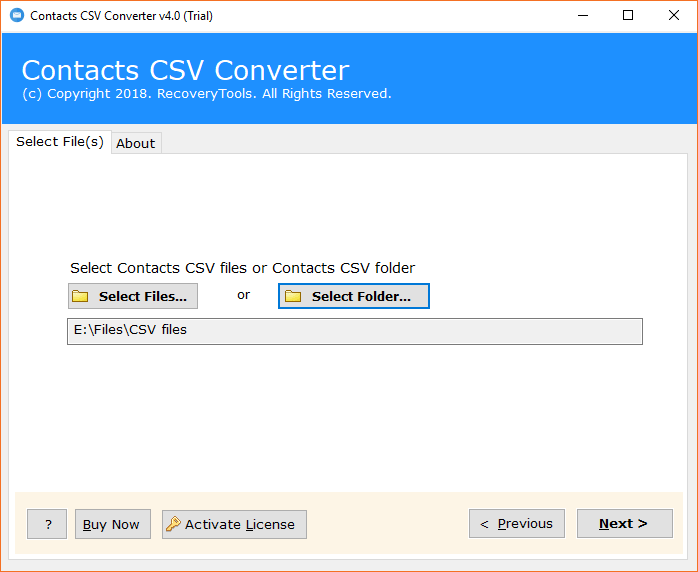
- Now, upload the Salesforce CSV contact file.

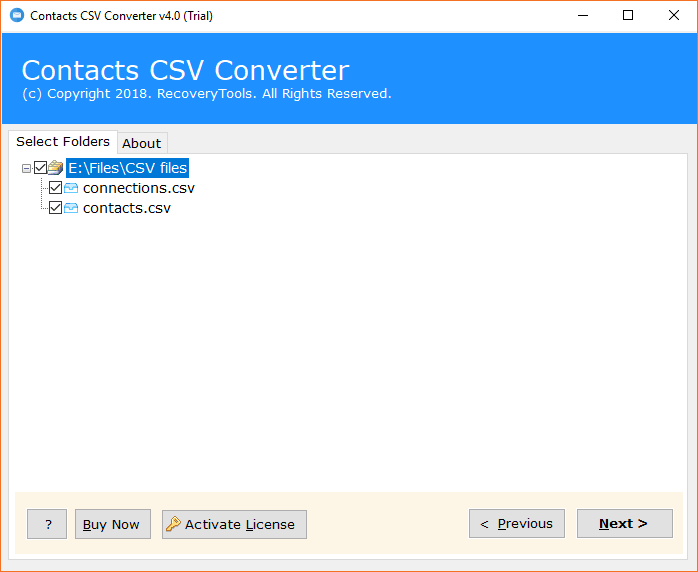
- Select CSV contact files from software panel and press Next button.
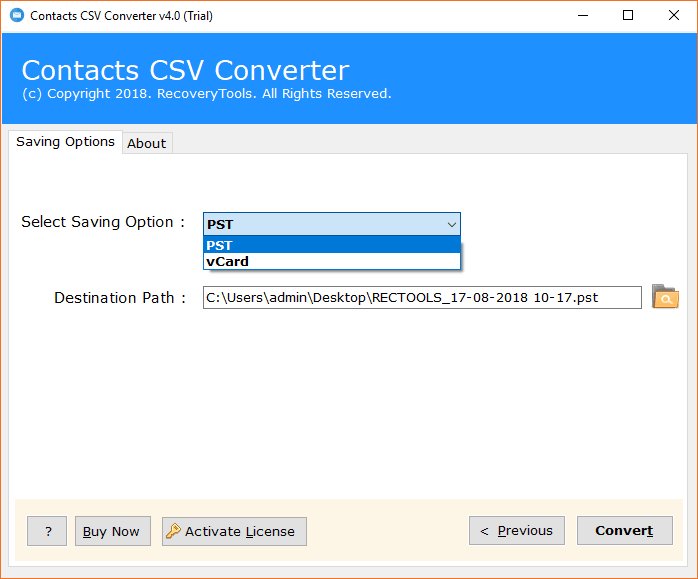
- And, select your required saving format as PST.
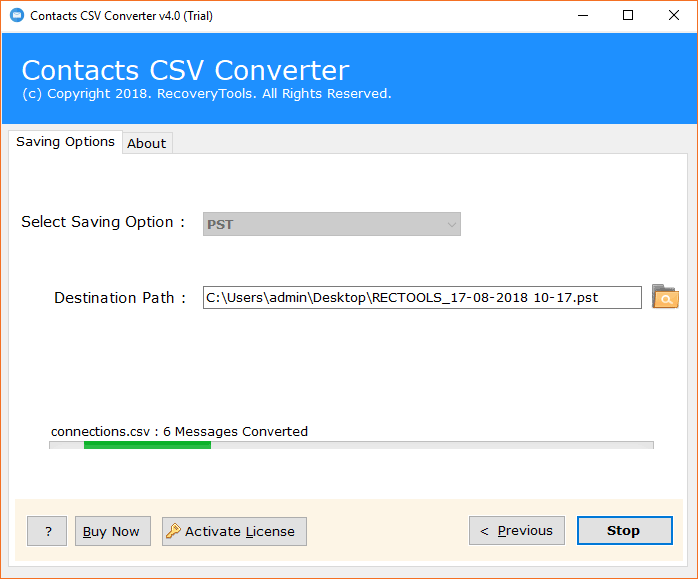
- After that, select the destination path and wait for the process.
- Finally,a conversion completed successfully message will popup.
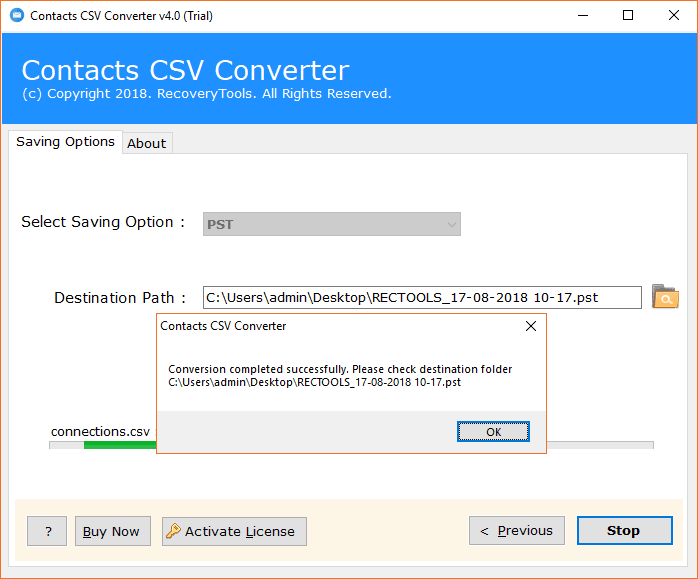
That’s it! Now, you are ready to import all your contacts into any device or application with a perfectly formatted and managed contact file.
Key Features of This Tool
- This tool supports bulk export with complete data.
- It converts CSV files into 2 different file formats.
- This method preserves data such as names, emails, etc.
- It works in accordance with the Salesforce standard.
- Easy to use interface for non-technical users.
Conclusion
Exporting contacts from Salesforce is important to run a smooth and easy business communication. In the above blog, we have discussed the best manual ways to easily export contacts from Salesforce effectively and efficiently. Whereas, we have also provided you with a professional converter which can convert your manually exported contact data into two other file formats for further use such as vCard and PST. If you have any query regarding this tool, our technical support team is 24/7 available to assist you.
Frequently Asked Questions (FAQs)
Q1. Can I directly export contacts from Salesforce?
Ans. Yes, you can directly export contacts from Salesforce using the right manual method. In the above-mentioned blog, we have discussed the best manual ways to easily extract contacts from Salesforce.
Q2. Which method is better to export contacts from Salesforce?
Ans. We have provided you with the best three free methods to export contacts from Salesforce.
Q3. Can I convert exported contact data into a flexible file format?
Ans. Yes, using the CSV converter, you can convert your CSV file into vCard and PST.