How to Add iCloud Calendar to Outlook? Step by Step Guide

Published: January 21st, 2026 • 6 Min Read
Summary: If you are also confused about how to add iCloud calendar to Outlook? Then this blog is specially written for you. You need to read this entire blog to know the best methods according to your requirements.
How to add iCloud calendar to Outlook? is one of the most common questions that arises among the users. Most of these users are who rely on multiple devices for their daily work scheduling. Many of these professionals often manage meetings through Outlook but still prefer Apple’s iCloud Calendar on their iPhone or Mac.
When both iCloud and Outlook are not synced, users face difficulties to keep track of events, reminders, or availability. That’s where you can easily add iCloud to outlook calendar and it becomes incredibly useful for your further events and work.
This is a comprehensive guide that will guide you about all the aspects of real reasons behind syncing your calendar. We’ll also talk about its advantages, disadvantages, and best ways to solve How to add iCloud calendar to Outlook? query with the entire integration process without any confusion.
Reasons that Users Needs to Add iCloud Calendar to Outlook
There are multiple practical reasons due to which individuals and professionals look for best & safe ways to integrate both calendars and solve How to add iCloud calendar to Outlook question:
- All Events Listed At One Place: Switching between applications or devices is very time-consuming. Syncing iCloud with Outlook helps you to keep all your meetings, birthdays, and reminders at single place
- Better Productivity: If you are using an iPhone for your personal tasks and a Windows PC for office work, you may need to sync your events to ensure your schedules stay aligned everywhere.
- Avoiding Double Entries: Sometimes users manually create the same event twice or more than that. You may sync iCloud Calendar to Outlook to eliminate duplication.
- Smoother Work Collaboration: Most of the businesses rely on Outlook and Microsoft 365 as integrating iCloud makes it easier to share availability with colleagues while still using your Apple device.
Manual Method to Add iCloud to Outlook Calendar
- First of all, open Apple Calendar and go to the iCloud Calendar
- Choose the Calendar details that you want to sync.
- Over the calendar Name, now click on the Profile/Share icon.
- In the Calendar Sharing window, enable Public Calendar.
- Now, copy the WebCal URL generated.
- Now, open Outlook Calendar (https://outlook.live.com/calendar).
- Go to Add Calendar and click on select Subscribe from the web.
- Now, paste the WebCal URL, name your calendar, choose color/charm if needed.
- Lastly, click Import to finish syncing
Disadvantages of Using Manual Method
Below are some disadvantages of using this in built manual method:
- One-way Sync: Events update only from iCloud to Outlook; you are not eligible to edit them in Outlook.
- Requires Public Sharing: Calendar must be made “public,” but it can affect privacy.
- Slow Refresh: Updates may consume a bit of time to show in Outlook.
- Add One-by-One: Each of your iCloud calendars needs its own separate link to sync perfectly.
Read More: Import OLM to Google Calendar
Professional Method to Add iCloud to Outlook Calendar
If you want to use the best solution to solve your problem, how to add iCloud calendar to Outlook? Then you can use the Best ICS Converter offered by BitRecover. This tool is a one stop solution to connect iCloud to Outlook calendar very easily and professionally. For this process, you must need a solution that is reliable and trustable to keep all your event details safe and intact.
This solution offers some best features that are rarely offered by any other converter. It offers you some quick and easy to understand steps that will allow you to complete the conversion princess as soon as possible while consuming only just a few minutes. You just need to download the solution on your device and follow its steps. Even if you need to transfer Google calendar to another account or any other platform, this tool can be an ideal solution.
How to Add iCloud calendar to Outlook with Quick Steps?
- First of all, download the solution on your system.

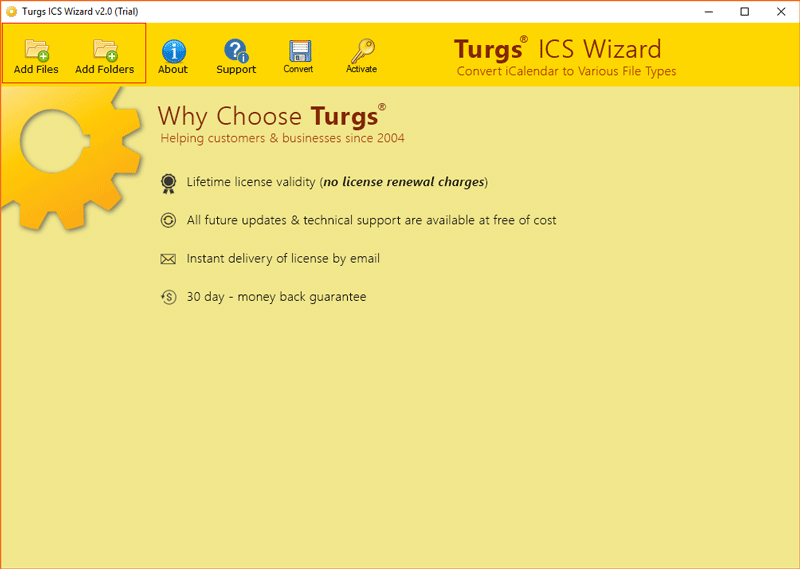
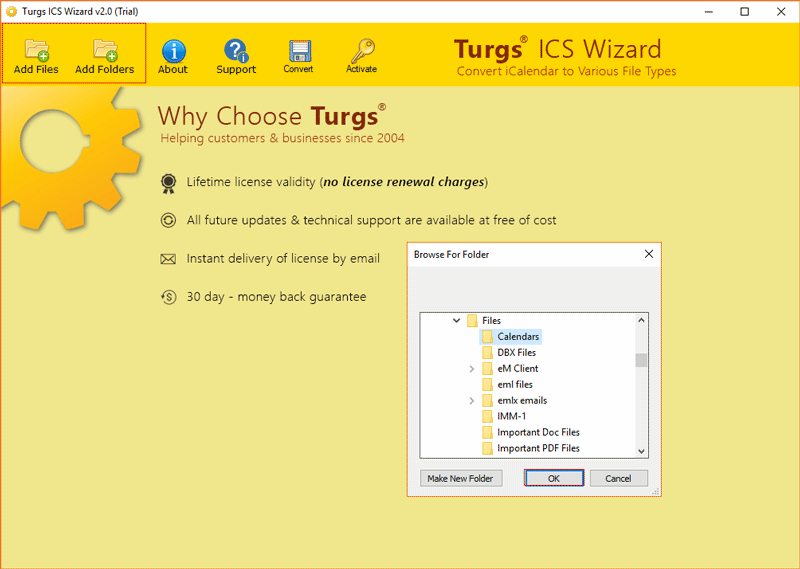
- Now, click on the Add Files or Add Folders button to add your data.
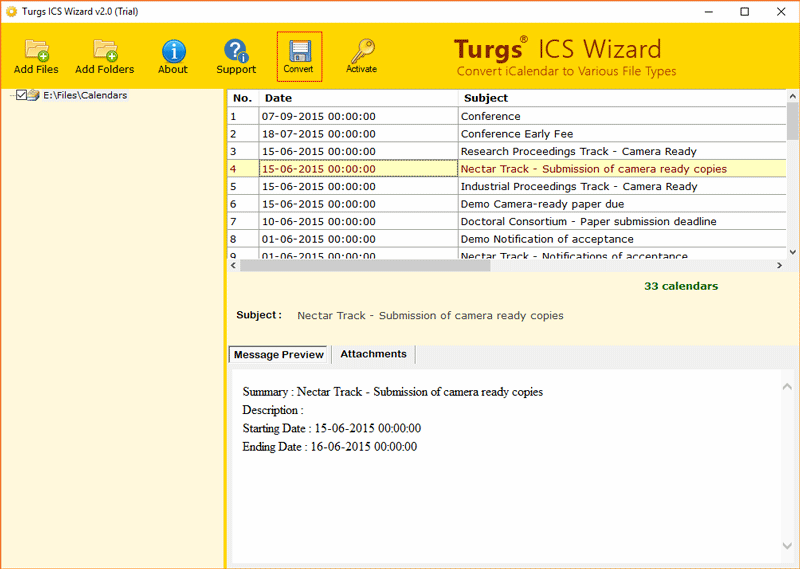
- Once added, you can preview all the uploaded data into the panel.
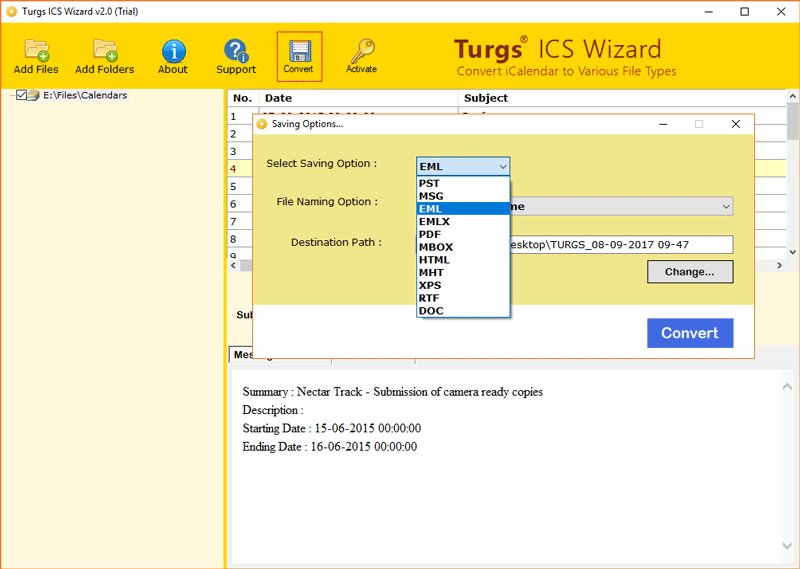
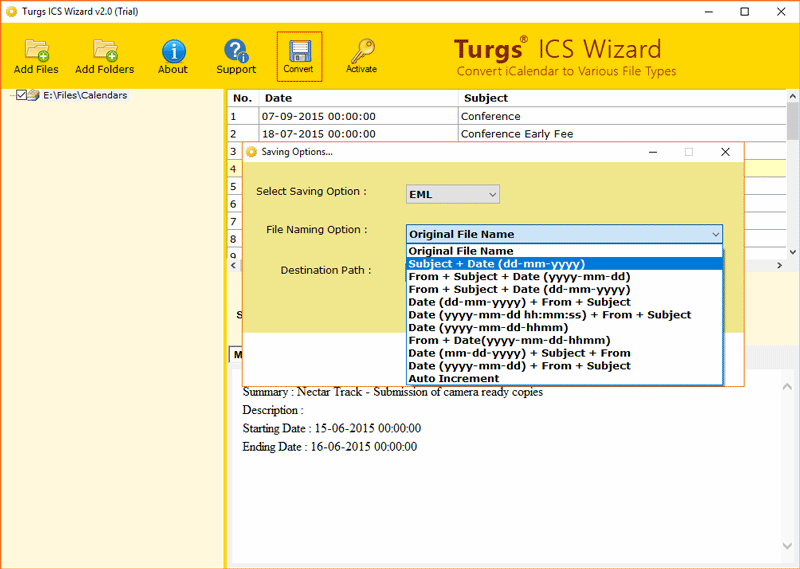
- Now, choose a PST from the Select Saving Option list.
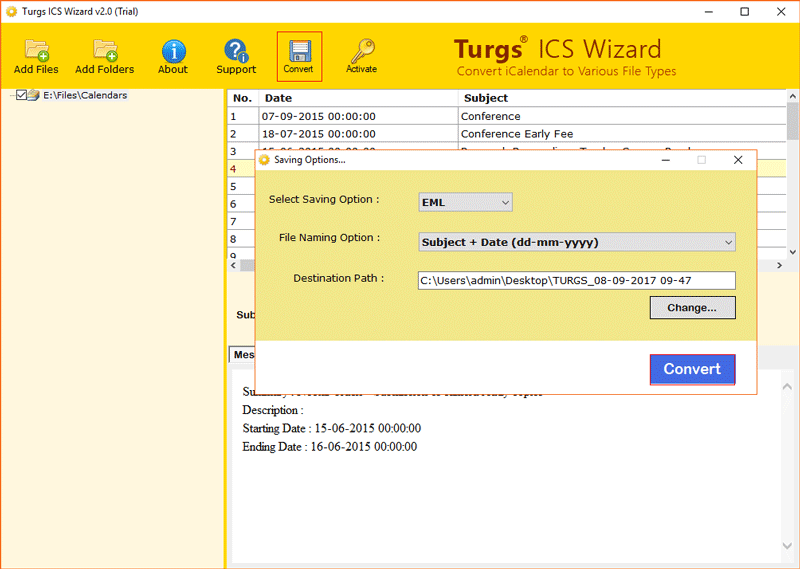
- Choose a new name from the given list to rename final data.
- Choose the Destination path, or tool will automatically save your final data to the Desktop.
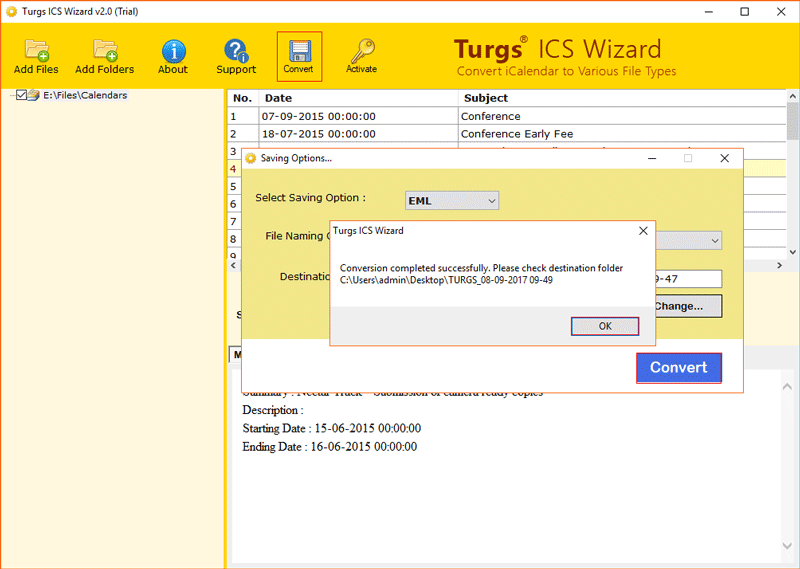
- Lastly, click on the Convert button, once completed you will be notified.
Compelling Features of this Professional Solution
- Guarantees to keep your entirely uploaded data safe and secure throughout the process.
- Offers quick and easy steps to connect iCloud to outlook calendar.
- Offers advanced features to solve, such as how to add iCloud calendar to Outlook.
- Does not require any supporting solution, the tool is itself enough for the process.
- Maintains the hierarchy and originality of your data and keeps it intact.
Advantages of Adding iCloud Calendar to Outlook
- Real-time Syncing of events: Changes that you have made in your iCloud Calendar reflect directly in Outlook and vice-versa.
- Cross-platform Accessibility: All your schedules become available on iPhone, iPad, Mac, Windows PC, and Outlook Web and you can see them easily.
- Better Time Management: When all your schedule is perfectly synced, you avoid missed meetings and conflicting schedules.
- Organized Data: Outlook provides you advanced features such as filters, as color-coding, and reminders. It helps you to manage your events more efficiently.
The Final Verdict
In conclusion to this blog, we discussed How to add iCloud calendar to Outlook with some best methods. We discussed manual as well as professional methods to add iCloud to Outlook calendar easily. You just need to go through both the process thoroughly and choose whichever way suits your needs. Just in case you need any help regarding the process, or method you can reach out to our Technical Support Team anytime as they are always available to help you.