How to Protect PDF File from Printing Without Adobe Tool?
Fact-checked and reviewed in accordance with our Editorial Policy
What Does Protect PDF File from Printing Mean?
Adobe PDF is a widely used file format that helps users share documents on any device. Protect PDF from Printing means disabling the print option in a PDF document so that users can only view the file, but cannot print it without permission. This protection helps prevent unauthorized hard copies and data misuse of the original PDF File. While applying print restrictions, document owners can control how their PDF files are used and shared while keeping the content secure and unchanged.
It is very important when a user shares confidential documents. Many users do not want to stop others from printing their PDF files they allow them to view the content. By applying print restrictions, you can keep your PDF safe from unauthorized printing without changing the original data.
Why is it Important to Protect PDF File from Printing?
There are multiple reasons why users need to protect PDF document from printing. Some reasons are mentioned below:
Prevents Unauthorized Printing: When you Protect PDF document from printing, it does not allow others to create hard copies without taking the permission. This helps you manage your document easily.
Protects Confidential Data: Sometimes, PDF files contain sensitive information such as business data, legal documents, or financial or personal details. Using the print protection methods helps users to keep this information safe and secure from others.
Ensures View-Only Access:
Applying the Print restriction allows users to read the PDF only, such as educational materials, eBooks, and paid documents.
Supports Secure Document Sharing:
Businesses and professionals can safely share their files with clients when they protect PDF documents from printing, without worrying about misuse.
Manual Approach Protect PDF File from Printing
By using manual methods, users can protect PDF file from printing without using paid software. These approaches allow users to apply print restrictions so the PDF can be opened and viewed but not printed.
Manual Method 1: Protect PDF File from Printing Using PDF Password Protection
- First, open any free PDF password tool.
- Now, upload the one PDF file.
- After that, set a password to protect the PDF.
- Then, click on the Protect PDF to start the process.
- Lastly, download the protected PDF file
Limitations:
- This method is not suitable for bulk PDF files, user have to protect each file manually.
- While using the online tools may raise privacy concerns when uploading sensitive data on third-party tools.
Manual Method 2: Protect PDF File from Printing Using Free PDF Viewer Software
- First, open the PDF in a free PDF reader.
- After that, “Go to File >> Properties >> Security.”
- Here, first enable Security settings.
- Then, disable Printing permission
- Lastly, save the PDF file in your system.
Limitation:
- All Free PDF viewers do not support print restriction.
- This works only with single or small-size file; this method is not suitable for bulk PDF files.
Professional Solution to Protect PDF Documents from Printing
When manual methods do not provide strong security. In that time, using a professional solution is the best option. PDF Lock Software is the best way to protect PDF documents from printing. It allows users to apply advanced permission controls that completely restrict printing, copying, and editing. These tools ensure that PDF files can only be viewed by authorized users without any risk of unauthorized hard copies.
This tool offers bulk PDF protection, which saves users time while working with multiple files. It maintains the original formatting, layout, and content quality of the PDF always. This tool is ideal for businesses, legal professionals, and users who need a reliable and secure way to protect sensitive PDF documents from printing.
Steps to Protect PDF File from Printing
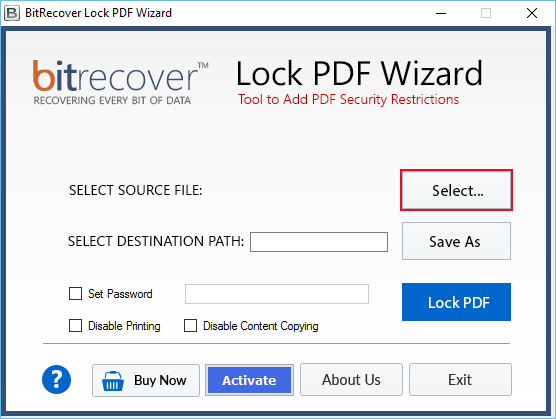
- First, install and run the PDF protector application.
- Then, click on the “Select button” to choose PDF files to protect it by a password.

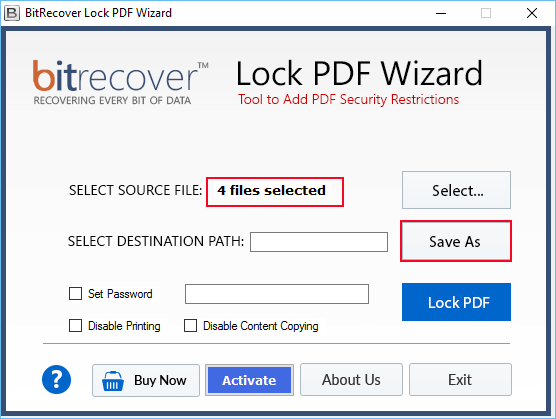
- In the “Select Source File” section, it will show the total count of all selected files. Now, click on “Save As” to select the destination path for saving the data.
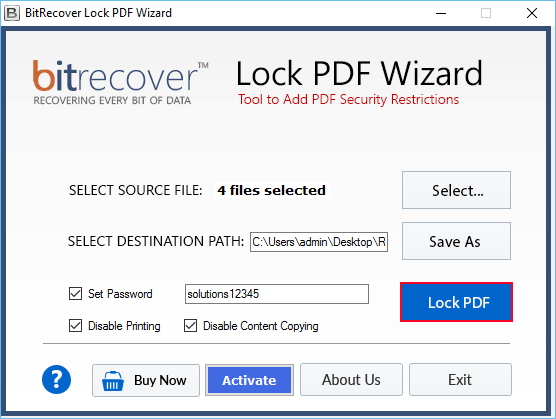
- Thereafter, click on “Set passwords” and fill it in. After that, click on “Disable Printing” to protect.
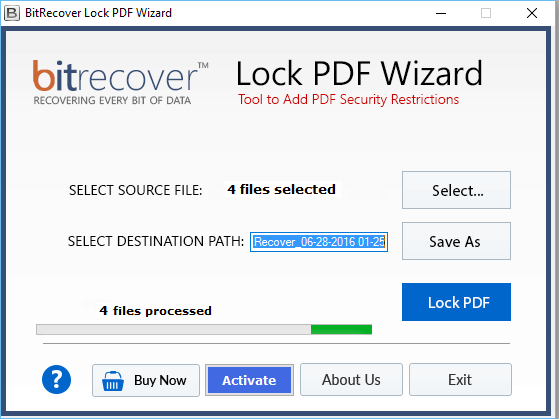
- Then click on the “Lock PDF” button to start the process.

- Now, users can go to the destination path to check the protected PDF files.
Key Features of This Tool
- It protects multiple PDF files at once in a single process, which saves time while working with bulk files.
- Apart from printing, it also allows you to protect your PDF file from copying and editing.
- The software runs without an active internet connection, which ensures privacy and faster performance.
- It preserves all the original layout, fonts, and content of the PDF after applying the protection without altering the document.
- The user can choose the destination path to save the output files for better organization.
- The tool offers a free demo version for evaluation and also allows users to lock PDF files with a watermark.
Frequently Asked Questions
Q1. How to protect a PDF file from printing?
A: You can protect a PDF file from printing by using professional tools. Steps usually include:
- Open the PDF in the software.
- Select destination path.
- Set a permission password.
- Disable or restrict printing.
- Lastly, save the PDF.
Q2. Is it possible to protect multiple PDF files from printing at once?
A: Using a professional PDF protection software, you can easily apply print restrictions to multiple files at once.
Final Verdict
In this blog, we have discussed simple ways to protect PDF file from printing. Users can easily apply these methods without facing any technical difficulties. The recommended professional tool is simple to use and suitable for securing PDF documents. It helps restrict printing while keeping the original content safe and unchanged.
PDF protector tool is also available for free evaluation. The evaluation version works similarly to that of the license version and allows the user to test the capability and accuracy of the application. Users can lock PDF documents with a watermark.
About the Author

