Outlook Reminders Not Popping Up in Windows 11/10

Published: January 19th, 2026 • 5 Min Read
Are you a regular user of Microsoft Outlook, and your Outlook reminders not popping up, causing you to miss important tasks, meetings, and upcoming events? Don’t worry, in this blog post, we will explore the common reasons Outlook reminder not popping up. Additionally, guide you on how to solve the Outlook meeting reminder not popping up problem using both manual and professional solutions. Read this complete blog till the end to find the best solution to this problem.
Before we start the solution let’s understand the common reasons why the Outlook task reminder not popping up.
Common Reasons Why Outlook Reminders Not Popping Up
- When you closed your Outlook Application completely and your application is not running in the background then reminders will fail.
- If you turned off accidentally or intentionally from the Outlook advance settings then you miss reminders.
- You are using multiple application at the same time, causing reminder will be hidden under the multiple screens or you accidentally close that one while using other applications.
- Windows notifications settings turned off, then you mill all types of notifications including Outlook.
- When you turned on Do not disturb or focus assist mode to avoid all the notifications that comes on your windows screen.
- If you are logged in to multiple PCs with the same account and the application is running on the main PC, you will miss the reminders.
- You Outlook get hanged or stuck due to virus, malware, or running multiple application at the same time then you will miss reminders.
- Using outdated Windows or Outlook applications will lead to compatibility issues and cause you to lose reminders.
- Last but not least, when your Outlook account get corrupted or deleted then you are not able to get reminders.
These were the main reason which is because you will not get reminders.
Now that we know why Outlook reminders not popping up, let’s move to the next section to find solution to fix this issue.
How to Fix Outlook Reminder Not Popping Up Manually
If your Outlook task reminder not popping up, you can solve this issue manually by following below steps.
Solution 1. Open Closed Outlook
Keep your Outlook open to get reminders, even if you minimized accidentally or intentionally.
Solution 2. Turn On Advanced and Windows Settings
- Open Microsoft Outlook application on your Windows OS.
- Then, go to “File” menu, click on the “options” menu.
- Here, click on the “Advanced” tab and select “Reminders.”
- Now, tick the both the options box if the box is not checked.
- Show reminders checkbox and Play reminder sound.
- Then, click “ok.”
Done! You will start getting reminders again.
In case of Windows Settings
- Go to settings, click on the system menu.
- Now, click on the notification tab and turn on the notification button.
- This settings work on both the windows 11/10
Additional settings (in case of DND mode)
- If the DND mode is tuned on, then you will get same setting in the same Window.
- Click on the on/off button to turn off.
Solution 3. Sign out From Multiple PC
- Check your account login devices list.
- Log out your same account from multiple devices. (If you logged in on multiple devices)
Solution 4. Keep Your Outlook Virus Free
- Restart your Microsoft Outlook application.
- Run the antivirus test to find the malware and viruses.
Solution 5. Update Windows and Outlook Application
- Open the Outlook application on your computer PC.
- Go to the “File,” choose option “Office Account” and click on the “Update Options.”
- Then, click on the “Update Now” button.
- Update your Windows Operating System from the settings option of your Windows.
- Go to the “settings,” click on the Windows Updates, and hit the button “check for update.”
Done! You will start receiving reminders.
Solution 6. Corrupted or Deleted Account
- Run the Outlook application on your Windows PC.
- Go to the “file” menu and click on “account settings” button.
- Now, click on the “Repair” button.
Done! Your account will restore account data.
By following these methods, you can easily fix the common outlook reminder not popping up problems.
If any of these solutions not work and not solved your problem then you can go with next step below.
Outlook Reminders Not Popping Up Windows 11 Professionally
If manual solutions fail to resolve the Outlook task reminder not popping up issue. You can try BitRecover OST to PST converter program. This tool safely converts your all the OST files while maintaining complete data integrity. It maintains the file hierarchy during the conversion process and keep your attachment in the emails. You can download the free trial version to check its functionality.
Steps to Fix the Issue of Outlook Reminders Not Popping Up Windows 10
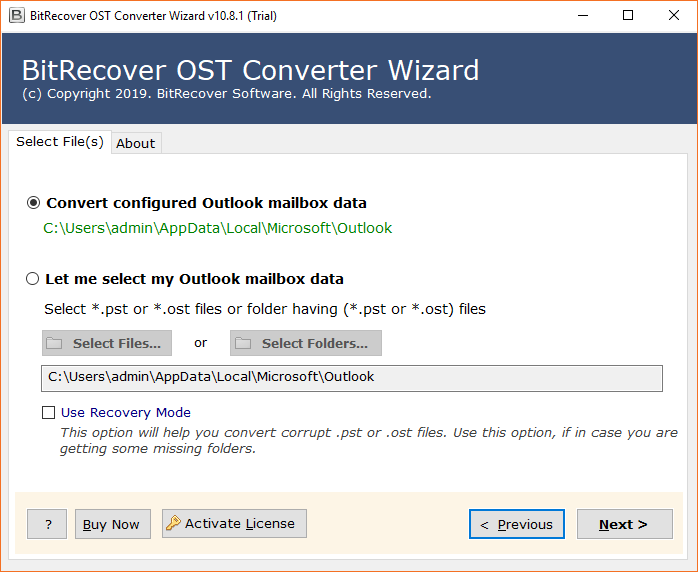
- Run the application on your computer system.
- Choose the option “convert configured outlook mailbox data” and click NEXT.

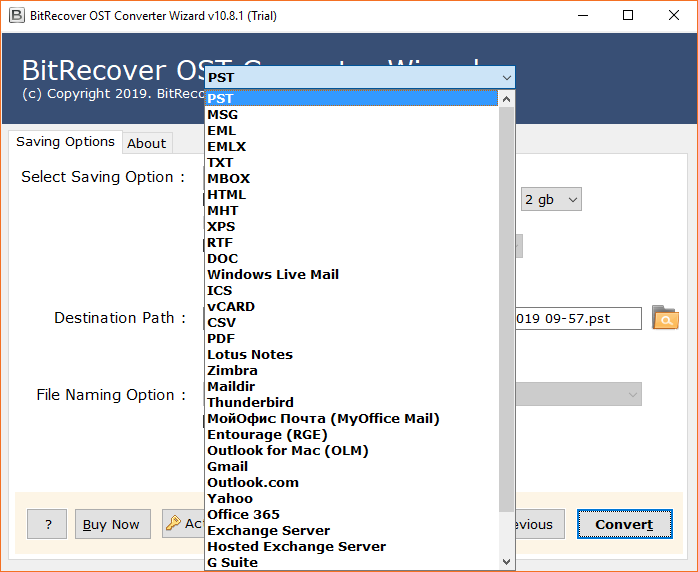
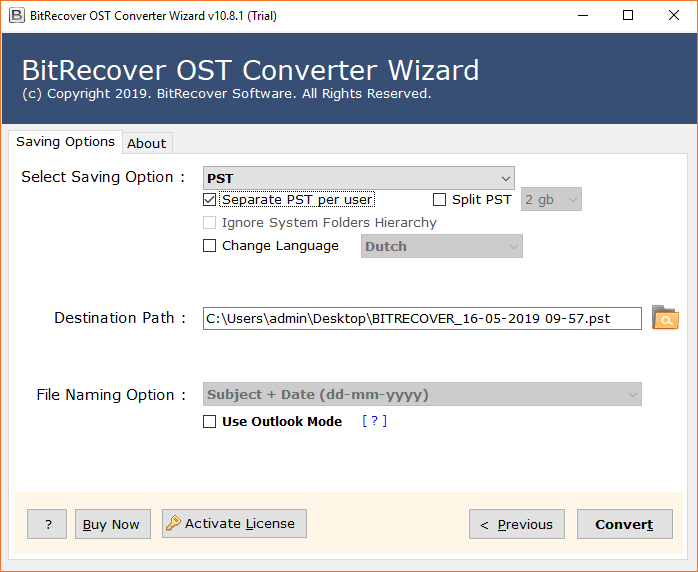
- Now, choose the “PST” as saving option and set the destination path.
- Then, click on the convert button to start the conversion process.
Done! Your PST file is ready, now import that .pst file in the software you will see all the events and calendars.
By following these steps to fix the issue by using this way, your outlook reminders not popping up will start.
Advantages of Using Professional Solution
- You will get option to made conversion on selective folders and files.
- The tool is easy-to-use and converts OST files without damaging email structure.
- Give you multiple saving options to convert OST files.
- The tool prevents all the attachments safe during the conversion process.
- Keep maintains data integrity during the conversion.
Final Thoughts
In this blog we explained why users Outlook reminders not popping up. We shared six manual solutions and a professional solution to fix the Outlook meeting reminder not popping up issue. Additionally, found manual solution only work when the Outlook faces common problems. The professional solution, on the other hand, fixes both common and rare issues. So, the best solution of this issue is using the professional method to complete repair.