Why Outlook Delay Delivery Not Working, Common Problems Explained

Published: January 14th, 2026 • 6 Min Read
Whether you’re a regular or professional Outlook user, you conduct most of your daily communication using Outlook. Outlook delay delivery not working can create quite a hassle for you. This issue becomes important when you want to send a specific email at a specific time, such as meetings, reminders, or follow-ups, and you miss important deadlines.
In today’s blog post, we are going to discuss the best solutions regarding “Outlook Delay Delivery Not Sending.” We are going to use both manual and professional methods to resolve this issue at the root. Additionally, we will also recommend which method you should use to resolve the issue. Read this blog till the end.
Before moving toward the direct solution, let’s understand why this happens.
Why is My Outlook Delay Delivery Not Working
The Outlook schedule send not working due to multiple reasons, some of the main ones are listed below.
- Outlook Closed: If the Outlook is minimized but running in the background, in that case, this feature does not work properly.
- Offline Mode: When your Outlook goes into offline mode, then your delay delivery doesn’t work.
- Wrong System Time/Date: If your system time, date, and time zone are wrong, Outlook cannot understand when to send emails. In that case, the feature is not working.
- Profile Corruption/Deletion: This happens when your Outlook profile is deleted from the desktop or becomes corrupted.
- Antivirus or Firewall Blocks: Sometimes Outlook’s antivirus software and firewall block the email sending process, cause Outlook delay delivery not work.
- Email Server Issue: If you are using a POP or IMAP email account, the server settings create issues that cause not work.
These were the main reasons that explain why the Outlook schedule send not working.
Now, we know the causes of the Outlook delay sending email not working, let’s move to the next section.
Manual Way to Solve Outlook Delay Delivery Not Working
To fix this issue, you can try the methods listed below to make re workable again.
Method 1. Delivery Time Settings
- Check the delay time and set the correct time. (If time is set wrong)
- Open the Outlook application on your Windows PC.
- Then, click on the “New Email” button to create a new email.
- After that, in the Message window, click on the Options tab.
- Then, click on the “Delay Delivery” under the “More Options or three dots” section.
- Done! You fixed your time setting.
After fixing this, if this is still not working, then use method 2.
Method 2. Time Zone Settings
- When your time-zone is mismatched with Outlook, then this issue arises.
- Check the exact time zone that matches your country’s time and Outlook time. (Adjust only when the time zone is selected wrong)
- Go to the “File” menu, select “Options.”
- Then, go to “Calendar,” and after that, set “Time Zones.”
Method 3. Outlook’s Send/Receive Settings
- Sometimes the Send/Receive settings cause delay delivery not working.
- Open the outlook on your computer screen.
- Go to the “File” menu, open the “Options” tab.
- Then, click on the “Advanced” button to move new section.
- After that, scroll down to the section Send/Receive.
- Then, click on the Send/Receive button.
In this particular section, make sure your “Send/Receive” Groups window settings are correct.
Method 4. Check Offline Mode
- Outlook’s Delay Delivery feature doesn’t work when your Work Offline mode is turned ON.
- Run the Outlook Application on your Windows PC.
- Go to the Send/Receive tab.
- Then, check that “Work Offline” is disabled. If it is enabled, then disable it.
Method 5. Update Outlook
- Keep your Outlook up-to-date with the latest updates.
- Open the Outlook application on your Windows PC.
- Go to the “File” menu, click on “Office Account.”
- After that, go to “Update Options” and click on Update Now.
- If there are any updates pending, install them and restart Outlook.
Done! Using the methods listed above, you can solve the Outlook delay delivery not working issue.
Limitations of Using Manual Methods
- If you have multiple attachments, then this will not work after the correct settings.
- The correct Send/Receive settings don’t guarantee exact delivery timing.
- Turning off the Disable Work Offline feature will help only if Outlook is Offline.
- Adjust the send and receive frequency. Cannot correct problems with the email server.
- The time zone setting will impact all scheduled calendar activities and e-mails.
- The Update of Microsoft Outlook will restart your application, due to which your Outlook might crash.
These were the limitations of using the above manual methods. However, you can check out the next method described below.
Outlook Delay Delivery Not Working: Fix Professionally
If the steps above didn’t solve your problem, try the BitRecover OST to PST Converter. This utility safely converts all OST files into PST, which will help you to resolve your Outlook delay delivery not sending issue easily. It maintains the file hierarchy during the conversion process. Download the trial version for free and check its workings.
Steps to fix Outlook Delay Delivery Not Sending
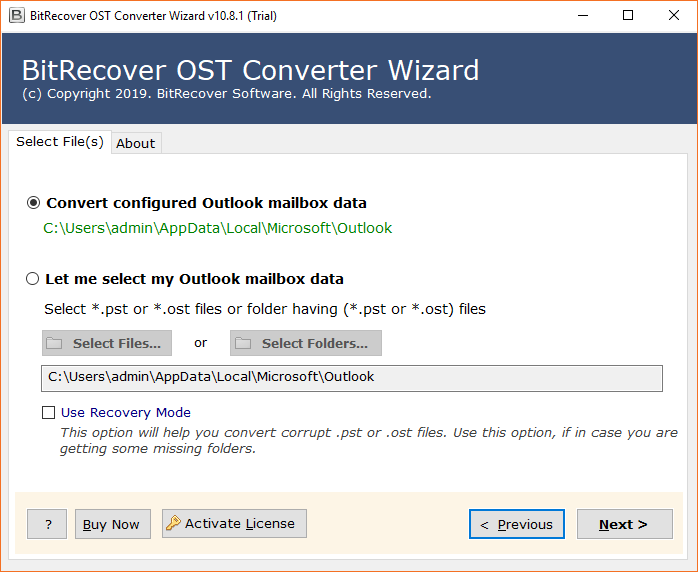
- Run the program on your Windows PC.
- Select “convert configured Outlook mailbox data” and click “NEXT.”

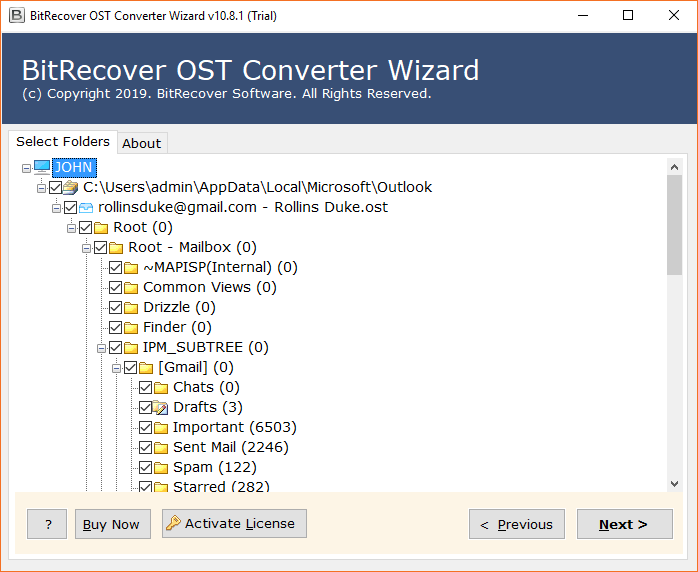
- Select the folders containing your scheduled email and click “NEXT.”
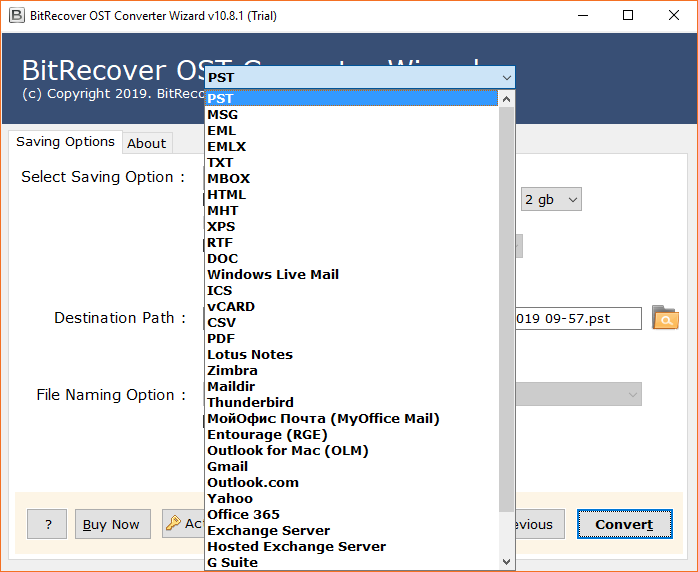
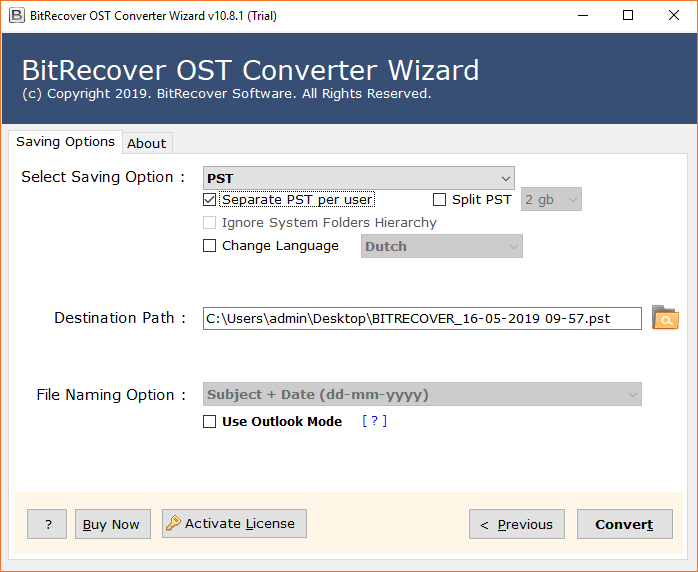
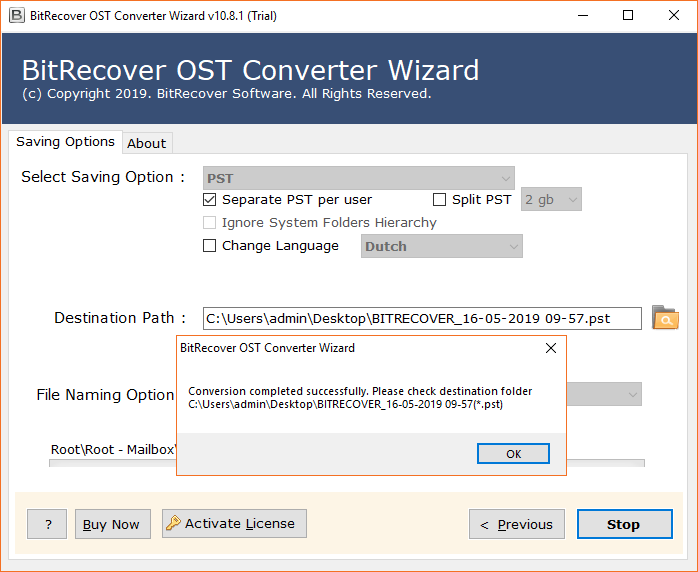
- Now, choose PST as a saving option and set the file destination path.
- After that, click on the “Convert” button to start the process.
- Done! You will receive a message of completion. Click on the “Ok” button.
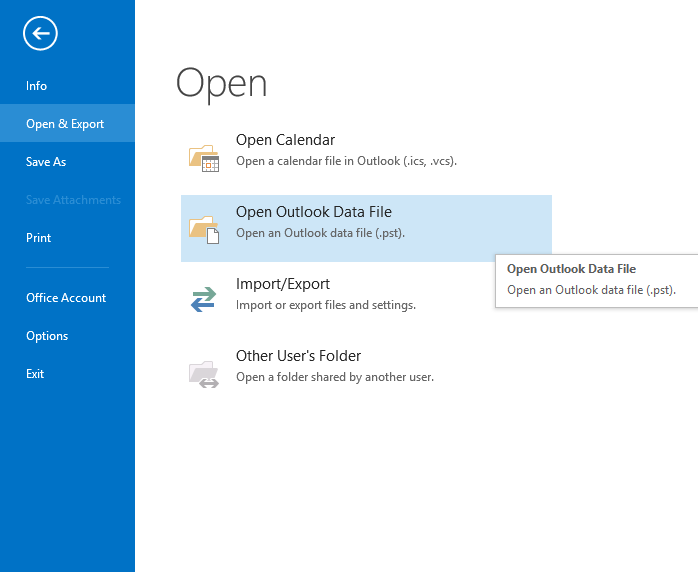
- Now, again open your Outlook application, go to “File” menu.
- Then, click on “Open & Export” option.
- Now, click on “Open Outlook Data File” option and import all the PST files.
- Finally, we have solved Outlook delay delivery not sending issue.
Advantages of Using Professional Solution
- This tool maintains data integrity during the conversion process.
- You will get multiple saving options to convert OST files.
- The software keeps all the attachments safe during the conversion.
- Supports conversion across multiple versions of Microsoft Outlook (from 2003 to 2021).
- This tool allows you to made conversion on selective folders and files.
- Its easy-to-use interface converts OST files without changing email structure.
Final Thoughts
In this blog post, we understand the reasons why Outlook delay delivery not working. We discussed both manual and professional solutions to resolve Outlook delay delivery not sending issue. However, after trying all manual methods, we found that the problem might be solved, but the manual process consumed a lot of time. On the other hand, the use of the suggested tool makes the solution of this issue easy and fast.