How to Move Outlook Data to New Computer Easily

Published: February 7th, 2026 • 6 Min Read
If you are looking for the solution to move Outlook data to new computer, then you must read this article. Whether you’ve just bought a new computer or upgraded your old one, you’ll need to move Outlook data file to new computer. But you don’t know how to transfer Outlook data to a new computer? Don’t worry! After reading this article, you will easily import Outlook PST file to new computer.
Microsoft Outlook is not only used for email communication, but it also stores users’ other data, such as emails, contacts, calendar, events, and tasks, etc. Outlook stores mailbox data in PST files for POP and local accounts, while OST files are used with Exchange, IMAP, and Microsoft 365 accounts.
This guide covers and explians both manual and alternative soltuions to help you to migrate Outlook data into new PC. Along with this, you know the reasons why users import Outlook PST file to new computer.
Now, take a look at the common reasons why users need to move Outlook data file to new computer.
Reasons to transfer Outlook data to a new computer
Below are some common reasons why users need to transfer Outlook data to a new computer.
- To keep secure important emails and files on the new computer.
- When users upgrade their computer hardware, they need to move their Outlook data.
- To restore Outlook data onto the new computer after windows upgrade.
- An old computer gets slow or damaged, due to which users want to keep their data safe, so they will shift it.
- If the users are using the older version of Outlook, and they want to migrate their data to a new version, such as 365, 2021, 2019, or 2016.
- When users reconfigure their email account on a new computer, with using IMAP/POP3 or Exchange accounts.
These were the major reasons which is why users move Outlook data file to new computer. Let’s have a look at the manual solutions to move Outlook PST files safely.
Manual Ways to Move Outlook Data to New Computer
To get all your Outlook data on a new computer system, you need to follow the instructions described below instructions properly.
Step 1: Create PST File in Old Computer Outlook
- Open Outlook on your old computer.
- Then, go to the “File” option and choose the Open & Export option.
- After that, click on the Import/Export button.
- Now, select the Export to a file option and click Next.
- Then, click on the Outlook data file (.pst) option and click on the next button.
- After that, select the entire mailbox folder to create the entire mailbox PST file.
- Click on the next, select the storage device. (USB, or other external devices)
- Finally, click on the finish button to complete the PST file creation.
Step 2: Import PST File in New Computer Outlook
- Now insert that USB or external device into your new computer.
- Then, open Outlook on your New computer system.
- Click on the File menu and select the Open & Export option.
- Then, click on the Import/Export button.
- Choose the option Import from another program or file.
- Then, click on the next button and select the “Outlook Data File (.pst)” option.
- After that, locate your storage devices where your Outlook PST file was stored.
- Finally, click on the Finish button to import.
- Done! You have completed the import process on the new computer
Both shared manual methods are suitable for POP accounts and their users only who has accessible PST files. Using these steps, Outlook mailbox data can be transferred to a new PC. However, it may not work in cases when users have OST files or server-based accounts. It has some other certain limitations that you must aware of.
Limitations of Manual Solution
- This method is not easy for non-tech users to use, and the steps are lengthy.
- Large PST files take longer time to export and they require careful handling.
- These methods only work for your currently received email; it does not work on newly received emails.
- If the PST file is not safely ejected during the export-import process, then the PST may become corrupted
- If your PST file is password-protected, then you need a password during the import process.
These were the major limitations that you may have faced while using this manual solution to move Outlook data file to new computer. To overcome this limitation, if the manual method does not work for you, try the next suggested professional method.
Professional Method to Move Outlook Data to New Computer
As we now know, we can manually move our Outlook data to new computer, but its limitations make the transfer not easy. For this kind of situations where the OST files become inaccessible or orphaned,BitRecover OST to PST converter provides a easy way to export Outlook data into PST format without data loss. This tool can convert OST files to PST format with complete data integrity and keep your folder structure as it is. It also preserves the attachments with your emails.
Steps of Professional Solution
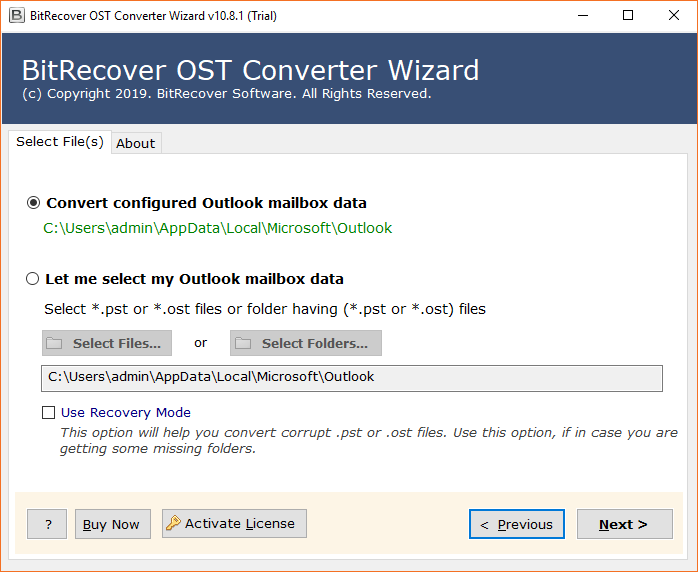
- Download and open the application on your old computer.
- Select the configured Outlook mailbox and export it into PST format.

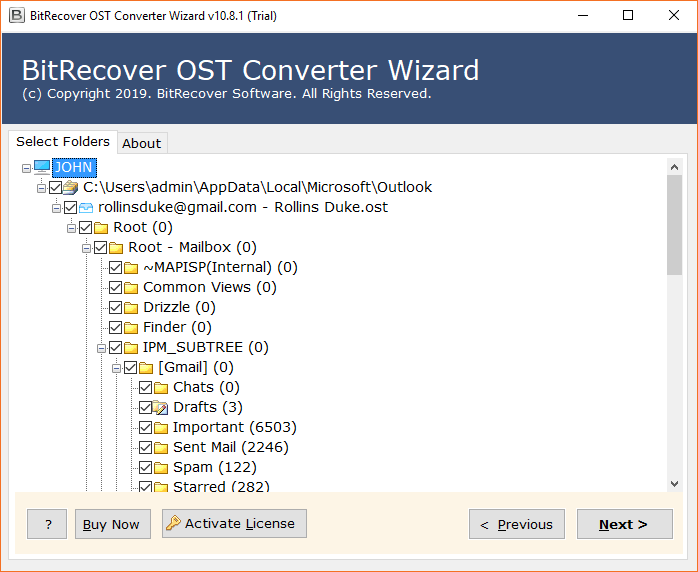
- Then, select specific or all OST folders and click on the Next button.
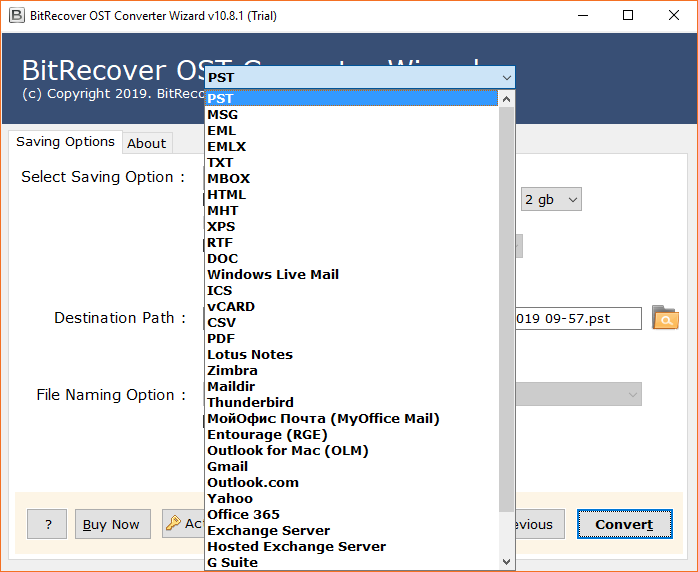
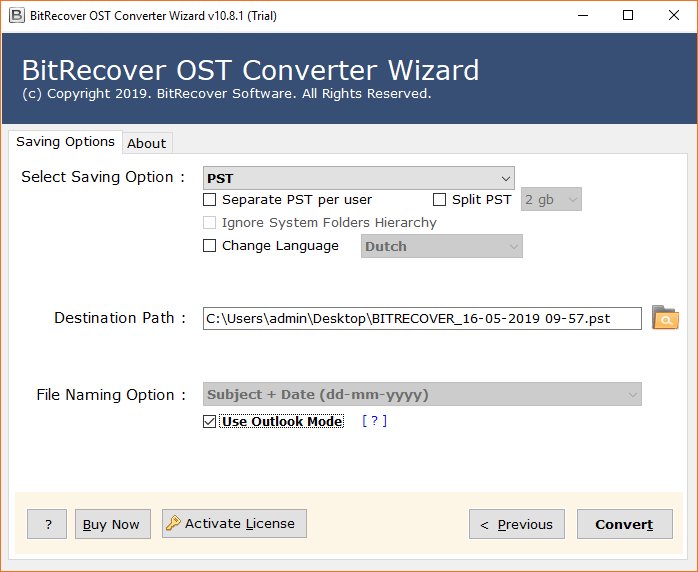
- After that, choose the PST as the saving option.
- Then, click on the convert button to start the conversion process.
- After that, move the converted file by copy paste in to external storage device.
- Then, directly connect storage devices to the new computer and import all the PST files using the Outlook application, and follow the described step 2 in the manual solution.
- Done!
Advantages of Professional Solution
- You can convert bulk OST files into PST files in just a few clicks.
- This tool is easy to use for both tech and non-tech users.
- The data integrity of the mailbox and its folder is maintained during the conversion.
- You can convert your OST files into other formats such as MSG, EML, MBOX, and PDF.
- This software can convert files from corrupted OST files.
Final thoughts
In this article, we discussed why users need to move Outlook data to new computer. We shared the major reasons why they want to import Outlook PST file to new computer. Along with we provide both manual and professionally tested methods to move Outlook data file to new computer. However, there are some issues with the manual methods, making it unsafe to transfer Outlook data to a new computer. For your comfort and mailbox condition you can choose between a manual or alternative solution for easy and secure migration.