Hyperlink not Working in Thunderbird? See Causes & Fixes

Published: January 16th, 2026 • 5 Min Read
Summary: If you are fed up with the notification “Hyperlink not working in Thunderbird” this blog page is going to be the best guide to get rid of it. There could be many reasons that a user is facing this issue and we will talk about the best solution for the same.
Clicking a link in an email should be effortless. You read a message, click on the link and the page simply opens up. But sometimes hyperlinks stop working in Thunderbird, and users get confused. To get rid of “Hyperlinks Not Working in Thunderbird” issue users need to adopt powerful fixes that result in a smooth access to all those invalid, broken or corrupted links.
Most of the users face that links do nothing when clicked, open incorrectly, or fail to open. This issue is more common than you might think and usually has nothing to do with the damaged emails. Sometimes, the problem is related to the browser settings, Thunderbird preferences, system-level changes, add-ons etc.
In this blog, we will discuss the best methods to fix Hyperlinks Not Working in Thunderbird issue with practical steps and get them working normally again. So let’s start.
Why does Hyperlinks Stop Working in Thunderbird?
Before jumping to the solutions, a user must know some basic yet major causes that this issue happens:
- Corrupt Thunderbird profile.
- Antivirus or firewall restrictions.
- Add-ons interfering with link behavior.
- No default web browser set on the system.
- Outdated Thunderbird version.
- Incorrect internal preferences.
How to Fix Hyperlink not working in Thunderbird Error?
As there could be multiple reasons that hyperlinks stop working in Thunderbird, we have multiple methods to fix it. You just need to know what has gone wrong and you are sorted. Once you know the reason, you can use the below listed methods.
Fix 1: Set a Default Browser on Your System
Thunderbird depends on the system’s default browser to open links. If there is no browser set, hyperlinks won’t work.
- First, open System settings on your computer.
- Now, go to Default Apps.
- Now, select any browser such as Chrome, Edge, or Firefox.
- Set it as the default web browser.
- Lastly, restart Thunderbird and re-try the opening link.
Fix 2: Check Thunderbird’s Internal Storage
Sometimes, link-handling settings get changed in Thunderbird accidentally, below are the steps to overcome this:
- Open Thunderbird on your system.
- Click on Menu and then Settings.
- Now, scroll down and open Config Editor and search for
network.protocol-handler.external.http
network.protocol-handler.external.https - Lastly, make sure to “set both of them as true”.
Fix 3: Update Thunderbird
Sometimes the older version of the application is problematic and users need to update it regularly.
- Firstly, open Thunderbird.
- Click on Help then About Thunderbird.
- Now, install updates if available.
- Once updated, reinstall the application.
Fix 4: Change the Message View Format
Some emails do not display links in a proper way, it depends on how are they being viewed.
- First, open the email that contains invalid link.
- Now, click on the View option and then Message Body As.
- Now, select Original HTML.
- Lastly, try clicking on the hyperlink again.
Fix 5: Disable Add-ons Temporarily
some extensions or themes may block or alter the link behavior.
- Open Thunderbird, click on the Menu.
- Choose Help then click on Troubleshoot Mode.
- Now, restart Thunderbird and test your hyperlinks.
- If links work in this mode, enable add-ons one by one to find the cause.
Best Way to Fix Hyperlink not working in Thunderbird Error
If there are any invalid, corrupted or disabled links in your Thunderbird due to any reason, use BitRecover Thunderbird Converter tool to transform your data in such a way that all your hyperlinks start working. Even if you have other data that you are not able to access due to any reason, this tool is one of the best methods to make them accessible.
Users just need to download this on their system and start converting their data. It helps to convert entire data within just a few minutes. It offers multiple features to make your data compatible according to your requirements.
Quick Steps to Use this Solution
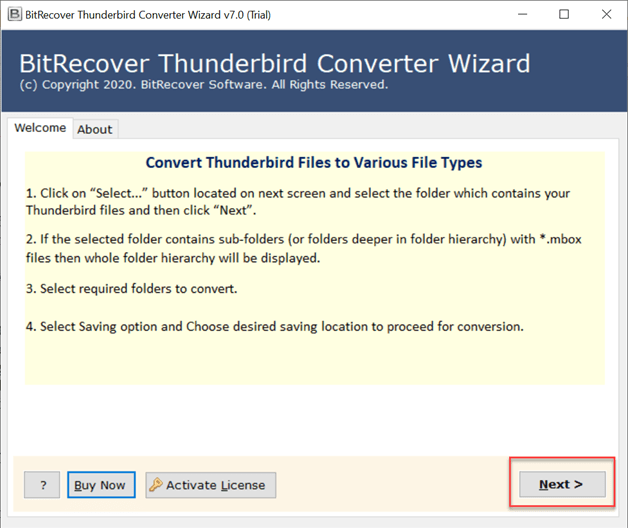
- First of all, download and open this solution on your system.

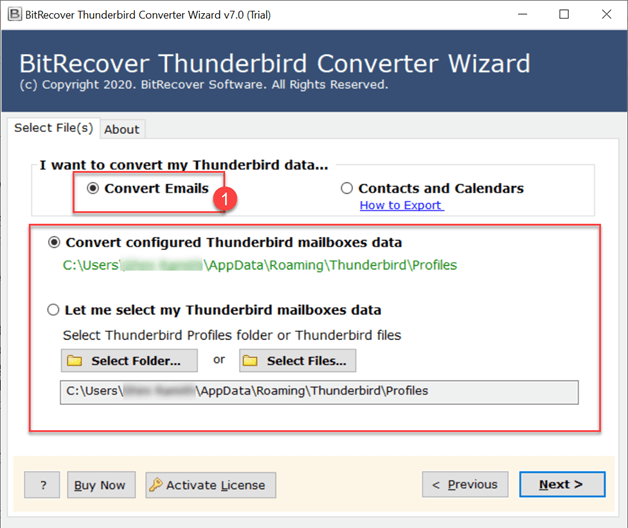
- Secondly, choose from options to upload Thunderbird data into the software panel.
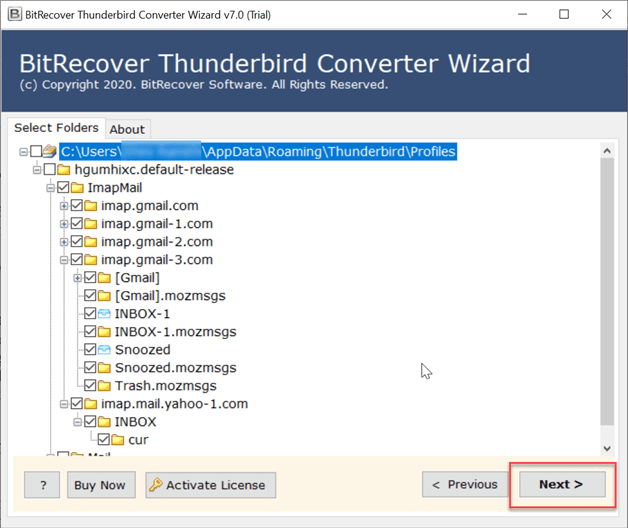
- Thirdly, preview all the imported data carefully before proceeding.
- Choose any file format of your choice and requirements.

- Choose a destination path to save your final data at your desired location.
- Lastly, click on the Next button to start the process.


Features of this Best Solution
There are variety of features offered by this solution:
- Capable enough to convert even corrupted data.
- Maintains the originality and integrity of the entire data.
- Keeps data 100% safe and secure throughout the process.
- Offers quick and safe steps to complete conversion.
- Prioritize data privacy and keep it end-to-end encrypted .
- Allows to convert Thunderbird to PST, PDF, and other formats .
The Final Verdict
In conclusion to this blog, we have discussed multiple methods to fix Hyperlink not working in Thunderbird issue with safety. There are multiple methods mentioned above that can be performed manually within the Thunderbird application itself. And also a professional method with multiple features and saving options to generate fix this issue directly by converting it to another format directly. Users can use either manual methods or best methods mentioned above. Hope this blog was helpful to you, if you have any queries or confusion you can contact our Technical Support Team directly. They are available to guide and assist you anytime.