How to Fix “Cannot Delete VMDK File from Datastore” Error

Published: February 18th, 2026 • 10 Min Read
Picture this scenario: You are doing your routine server maintenance, cleaning up old VMs so you can free up precious Terabytes on your production storage. You right-click on a folder, hit “Delete from Disk”, and instead of a clean close, you get a stubborn, cryptic error message: “Cannot delete the vmdk file from the datastore”.
As an IT administrator or a tech enthusiast managing a home lab, you are very much aware of the frustrating nature of this problem. How annoying it is to have an orphaned vmdk file just sitting there like a ghost in the machine, taking up space and not budging. Whether you are using VMware ESXi, Workstation, or Fusion, a “locked” or “busy” file is much more than just a nuisance; it is a barrier to getting things done.
In this deep-dive article, we will provide a full breakdown of why your hypervisor is holding that file hostage, then give you an easy-to-follow, step-by-step roadmap for reclaiming your storage. We will cover all the ways, from manual tweaks to advanced command-line “magic”, to fix the issue; and if the situation looks truly dire (such as a corrupted datastore), we will show you how to fix the situation with professional tools.
What Does “Cannot Delete VMDK File from Datastore” Mean?
To fix this issue, it will help to know what a VMDK file is. A VMDK or Virtual Machine Disk file is like the hard drive of the VM; it has the operating system, applications and all of your important information on it. When you try to delete this file, if the system says “No,” it is normally because the VMkernel (which is the heart of the hypervisor) thinks that the file is still being used.
In other words, this is typically caused by a File Lock. Locks are used by hypervisors to ensure that no more than one host can write to the same disk at the same time. Otherwise it will create a huge data corruption problem. When you power off or remove a VM, there are times when the “locks” do not release normally. Therefore, you end up with a zombie file that cannot be removed from your datastore.
Common Symptoms: How the Error Appears
The “cannot delete vmdk file” error rarely travels alone. Depending on your environment, you might see these variations:
- “File [DatastoreName] VMname/VMname.vmdk is locked.”
- “Device or resource busy.”
- “The operation is not allowed in the current state.”
- “Cannot remove file/directory: The file is used by another process.”
- The delete option in the vSphere Client or Web UI is simply greyed out.
Why is My VMDK File Stuck? (Root Causes)
The way to fix the virtualization headache is to understand why it happened. The following is a list of the various causes behind the occurrence of this virtualization error:
1. Active Snapshots
When you have multiple snapshots created, the base VMDK file is associated with the chain of delta files, and if the hypervisor thinks a snapshot is still an active snapshot or in the process of being transitioned between states, it will prevent deletion of the parent VMDK.
2. Registered VM
You can remove a VM from your inventory, but if the hypervisor has a management agent that has a pointer to that VM and the pointer is still present, the hypervisor will continue to maintain a lock on the VM.
3. Ghost Processes or “Zombies”
If you are doing a backup job (using a product such as Veeam or Veritas) and the job fails afterwards, the backup appliance may still have a lock on the disk type known as a “HotAdd”, and therefore it will cause the hypervisor to believe that it is still backing up that VM.
4. Third-Party ISO or CD-ROM Mounting
If a VMDK file is designated as part of a template or is being shared across multiple VMs (multi-writer mode), it could be the secondary VM that is holding the lock on base VMDK file.
5. Host-Level File Locking
In clustered environments (using HA/DRS), if one ESXi host has failed, there may be a stale lock on the VMDK file that will be recognized and respected by the other hosts in the cluster.
Quick Checklist: Try These First!
Before diving into the complex terminal commands, run through this “sanity check” list:
- Power Off: Ensure the VM associated with the file is completely powered down, not just suspended.
- Check CD/DVD Drives: Ensure no other VM has this specific VMDK or an ISO in the same folder mounted.
- Refresh Storage: In vCenter, right-click your Datastore and select “Refresh” or “Rescan Storage.”
- Check Backups: Ensure no backup or replication jobs are currently running for that VM.
Manual Fixes: How to Delete a Locked VMDK File
If the checklist didn’t work, it’s time to get hands-on. Here are the most effective manual methods used by systems administrators.
Method 1: Consolidate VM Snapshots
If a snapshot is the culprit, “Consolidating” is the safest way to merge the delta files and release the lock on the base VMDK.
- Right-click the VM in your vSphere client.
- Navigate to Snapshots > Consolidate.
- Wait for the task to complete and try deleting the file again from the Datastore Browser.
Method 2: Unregister and Re-register the VM
Sometimes the vCenter inventory gets “out of sync” with the actual files on the storage.
- Right-click the VM and select Remove from Inventory (Do NOT select Delete from Disk yet).
- Navigate to the Datastore Browser.
- Right-click the
.vmxfile and select Register VM. - Once re-registered, try to power it on and then perform a clean Delete from Disk.
Method 3: Finding the Lock via SSH (Advanced)
When the UI fails, the command line tells the truth. This is for users comfortable with ESXi Shell or Putty.
- Enable SSH on your ESXi host.
- Connect via Putty and navigate to your VM directory:
cd /vmfs/volumes/[DatastoreName]/[VMName] - Run the following command to see which host is locking the file:
vmfsfilelockinfo -p [FileName].vmdk - The output will give you the MAC address of the host holding the lock. You can then restart the management agents on that specific host using:
/sbin/services.sh restart
Method 4: The “Move” Trick
Sometimes you can’t delete a file, but you can move it. Create a temporary folder on the same datastore and try to drag the stubborn VMDK into it. If it moves, try deleting the entire temporary folder. This often bypasses simple directory-level lock glitches.
The Risks and Limitations of Manual Fixes
The aforementioned manual solutions can be very powerful. However, they are not risk-free and can pose problems especially for those less experienced at using commands using terminal/shell.
- Possibility of Data Loss: One wrong
rm -rfcommand in the SSH shell can wipe your entire datastore. - Additional Complexity: Tracking down MAC addresses and restarting management agents can lead to brief downtime for other VMs on that host.
- Corrupted Headers: If the VMDK cannot be deleted due to it being damaged by a corrupt file system, the commands you execute may result in your VMDKs becoming irrecoverable.
- Time Consuming: Troubleshooting all of the locks in large clusters can take hours of downtime.
When to Choose a Professional Solution: BitRecover VM Data Recovery
If you have tried the manual steps and you’re still seeing “cannot delete vmdk file,” or worse—if the file has become corrupted during your attempts to unlock it—it’s time to stop experimenting.
The BitRecover VMDK Recovery Tool is specifically engineered to handle the complexities of virtual environments. It doesn’t work at the OS level like manual methods; rather it interacts directly with the VMDK structure.
Why Choose BitRecover:
- Bypass File Locks: The tool can read and recover data from VMDK files even if the hypervisor claims they are “locked” or “inaccessible.”
- No Technical Expertise Required: With this software, you do not need to learn SSH or VMFS command line commands because it is easy to use and has a user-friendly, intuitive interface.
- Recover from Deleted Partitions: Even if you managed to delete the pointer but the data is still on the disk, BitRecover can “resurrect” those files.
- Support for All Formats: Whether it’s
-flat.vmdk,-delta.vmdk, or even.avmdk(snapshots), the tool handles them all.
Don’t risk your production data with “trial and error.” If your VMDK refuses to behave, let professionals handle the heavy lifting.
Simple Recovery Steps Using BitRecover Software
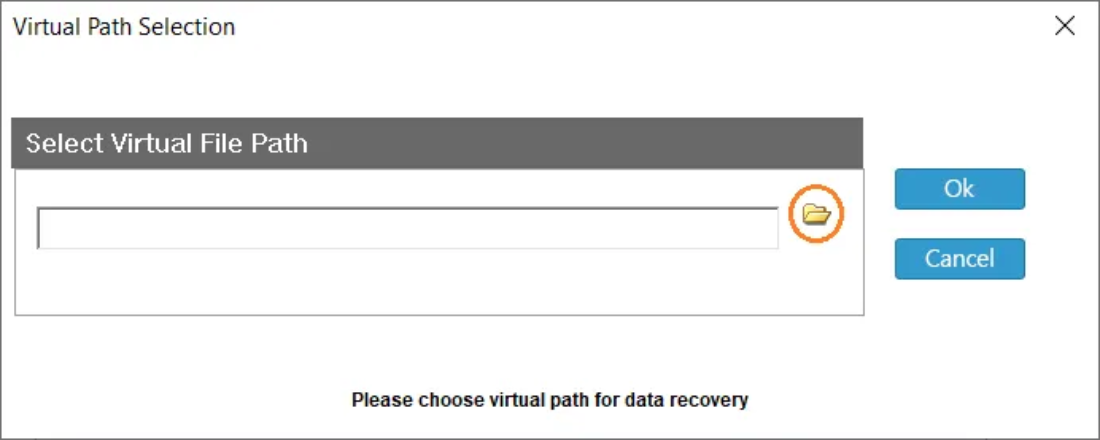
- Open the tool on your host machine.

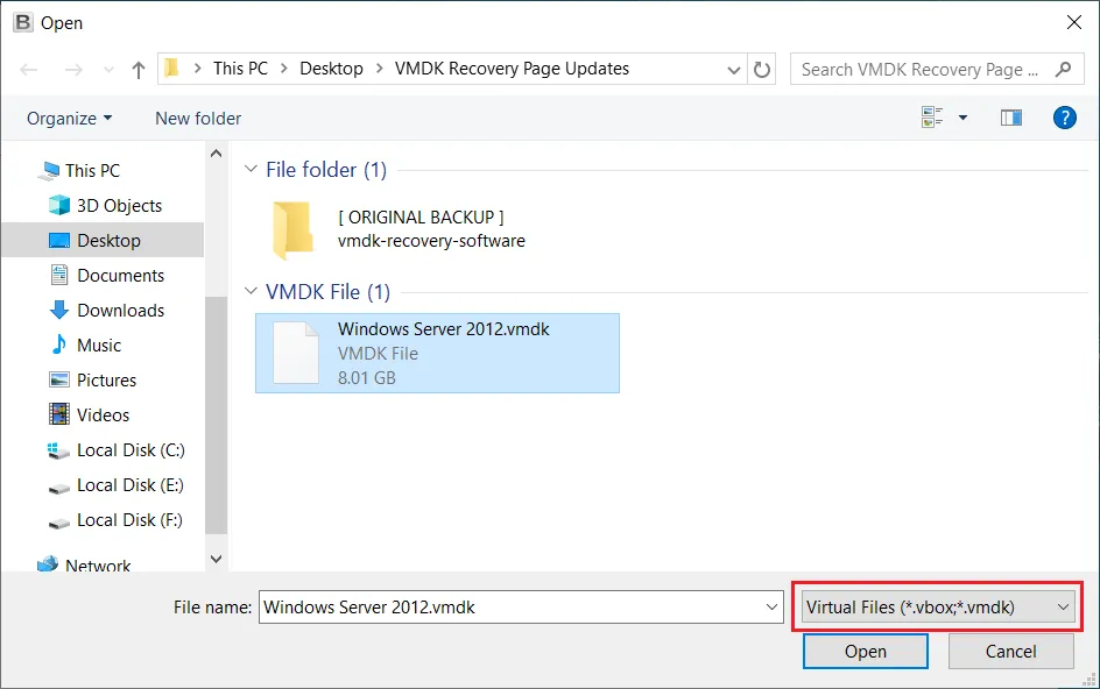
- Select the VMDK file from which the data needs to be recovered.

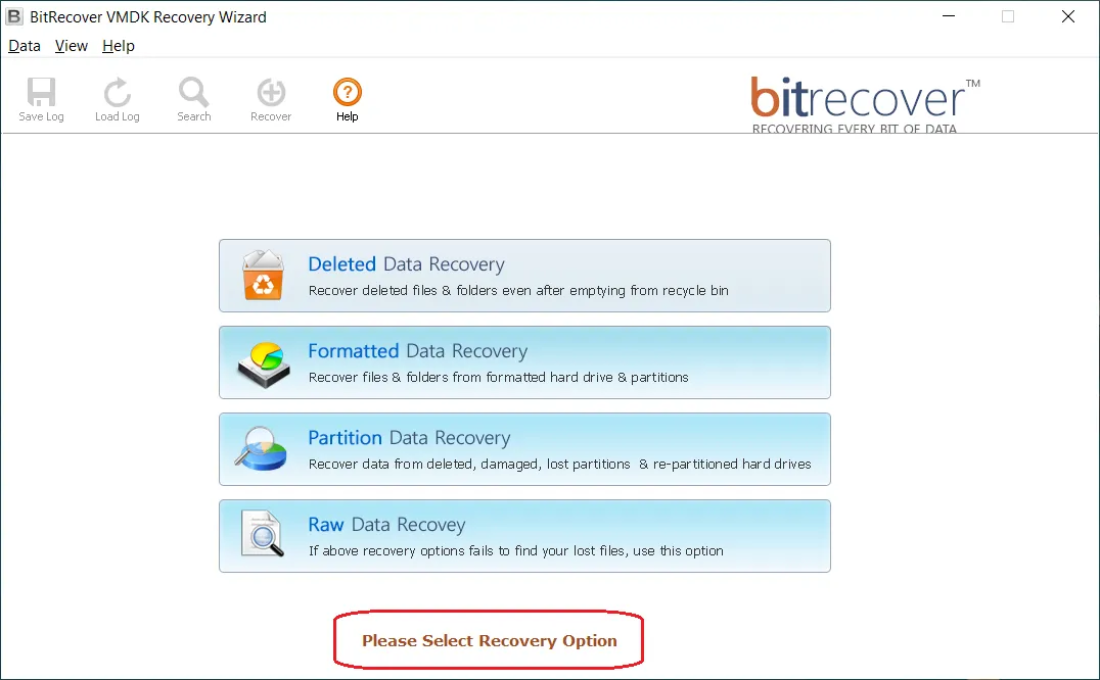
- Choose the Appropriate Recovery option for recovering data from the virtual disk file.

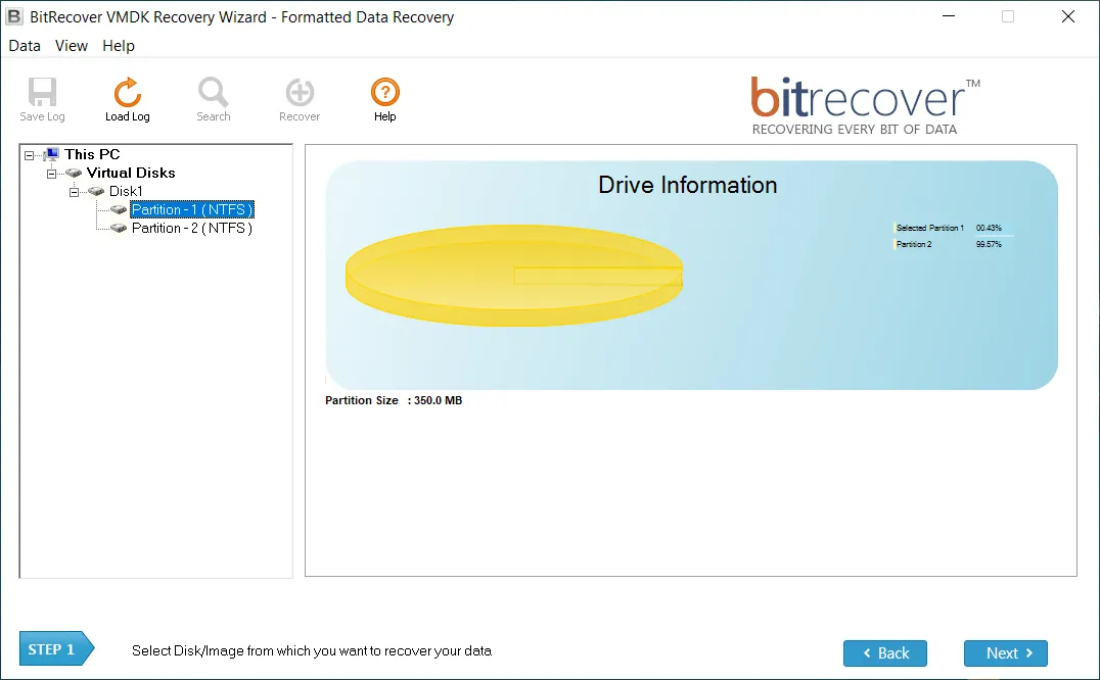
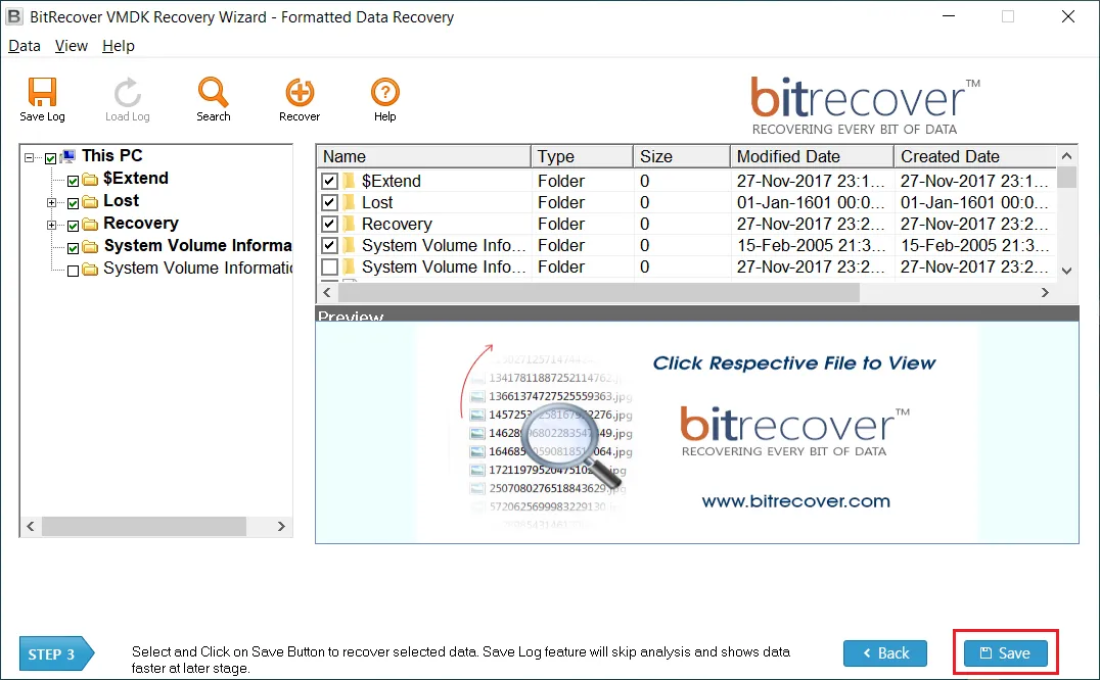
- Select & Scan the Drive Partition and wait while the software finds recoverable files.

- Preview results and choose the files or folders you want to save.

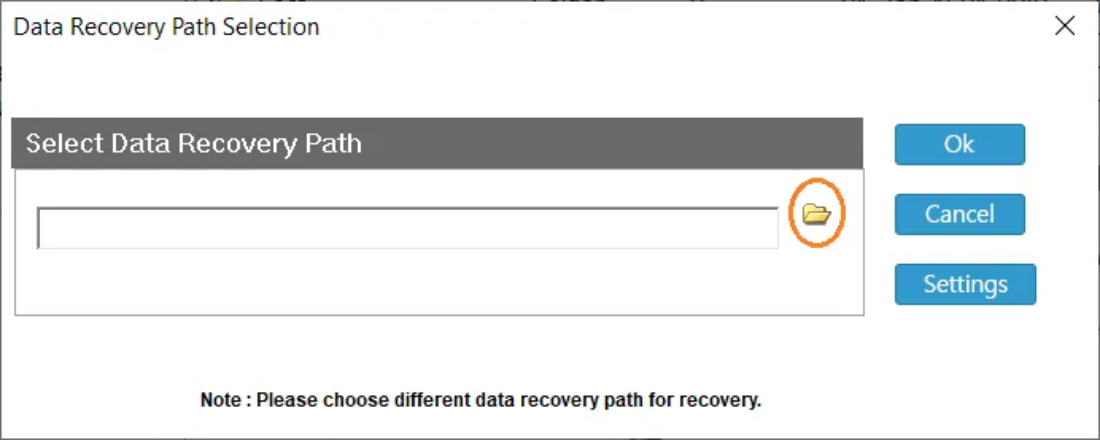
- Save recovered data to a new folder on your host.

Frequently Asked Questions (FAQ)
Q1: Can you delete a VMDK when the VM is “Suspended”?
No. A suspended VM utilizes a state file and a lock against its corresponding VMDK so that the system can resume from where it stopped when the power is restored to the VM. A VMDK cannot be deleted unless the VM is properly powered on and shut down or the suspended state is “discarded“ before deletion can occur.
Q2: Why does the Datastore Browser display 0 KB for a VMDK?
This generally indicates the presence of a descriptor file (.vmdk) with no corresponding data file (-flat.vmdk). When this situation is present and termination occurs, the VMDK is referred to as being “orphaned,” and this state can limit the ability to delete the VMDK while in this state.
Q3: Will restarting vCenter resolve the “unable to delete vmdk” error?
In some cases, but when the lock resides at the level of the ESXi host (the physical layer) the vCenter management layer will not be able to break the lock. The host management agents must be restarted rather than restarting vCenter.
Q4: Can you manually delete a “delta” file?
You should only delete the delta file manually if you are certain that you do not need the data stored in that snapshot. If you manually delete a delta file rather than consolidating the delta data into the base–VMDK, then the virtual disk chain will likely be corrupted.
Conclusion
The “cannot delete vmdk file from datastore” issue is a well-known problem in virtualization environments, but this problem can be easily resolved in many situations. Most often, the cause of the “cannot delete” error is due to either a stuck process or an old snapshot. Following the steps of the checklist and using manual methods to resolve this problem will often enable you to unlock the file and retrieve your storage space.
If you have tried the manual methods and they are too risky or complicated for you to try, remember that professional tools like BitRecover help you safely retrieve your data and recover from problems with your storage space. Data is the most important resource that you possess; you should treat it properly.