How to Convert TIFF to PDF Format Using Simple Methods?

Summary: You can convert TIFF to PDF with both manual and professional methods. Manual methods are free of cost. However, it takes a lot of time of users, that’s why we introduce a professional recommended TIFF to PDF Converter by BitRecover, which can convert TIFF to 10+ formats with batch conversion support.
Are you looking for the methods to convert multipage TIFF to PDF? If yes, then this blog will explain you how to convert TIFF to PDF. TIFF is an image file format that is widely used by professionals and healthcare organizations that need high-quality images, lossless storage and document preservation for contracts, invoices, financial documents, medical reports and insurance records. TIFF files are mostly large in size and they may not open on some devices, which is why users convert TIFF to PDF. In this blog, we will discuss how to convert TIFF to PDF with professional methods.
Let’s start the blog.
Reasons To Change TIFF to PDF
Here are the reasons behind converting TIFF to PDF:
- Universal Compatibility: You can open PDF files on almost all devices, operating systems and also web browsers without the requirement of special software to view them.
- Reduced Size of File: TIFF files are usually large in size, which is why they often store the images without much compression. Converting the TIFF to PDF can reduce the file size and make it easier to store, upload and share.
- Better Security: PDF files offer advanced security options like password protection, encryption, watermarks, digital signatures and user permissions. PDF features help to protect the documents from unauthorized access or editing.
- Preserve Document Formatting: PDF maintains the original appearance of TIFF images across different devices and operating systems, ensuring consistent viewing.
Manual Ways to Convert TIFF to PDF
If you have TIFF files and you want to convert them without spending a single penny, then you can choose manual ways to convert the TIFF files:
1: Using Built-in Print Option.
With the built-in print option you can change TIFF to PDF manually:
- First, go to the location where TIFF files are located.
- Open the TIFF file in the Photos app by double-clicking.
- Press Ctrl + P to open the print option from the menu.
- Choose PDF from the list of available printers.
- Adjust the paper size, orientation and image size according to the work requirements.
- Click the Print button and choose the destination folder.
- Enter the file name and click Save button.
2: Using Microsoft Word.
You can convert TIFF to PDF by using Microsoft Word:
- Open Microsoft Word and create a new document.
- Click the Insert, then select Pictures and then choose the TIFF file.
- Now, adjust the image size and position if needed.
- Click the File and then Save As.
- Choose PDF format from the save as type.
- Then, select the destination folder and click the save button.
Note: You can convert TIFF to PDF with the manual methods, but some manual methods require an internet connection and it can affect the image quality and formatting in some cases. Large TIFF files or multiple pages of TIFF may not be converted properly. The manual method can only turn a few files at a time. It is time-consuming for bulk TIFF file conversion.
Professional Software to Convert TIFF to PDF
BitRecover TIFF Converter is a certified software for IT professionals. It allows users to convert the TIFF to 10+ formats. It is a standalone software which works independently without the support of any other third-party tool.
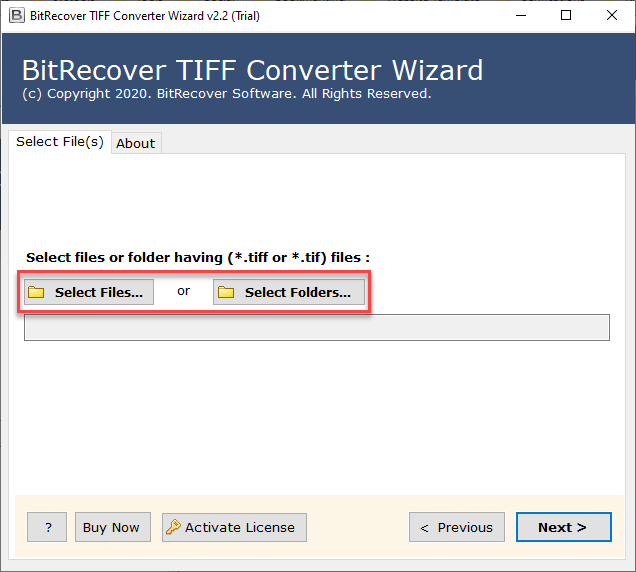
This tool supports batch conversion while maintaining the original image quality. TIFF to PDF Converter provides dual file selection options so the user can either select files or folders. This software works offline for better security. Below are the simple steps to convert TIFF to PDF easily.
Here are the steps to change TIFF to PDF with Professional software:
- Download the TIFF to PDF Converter tool on your system.
- Now, select the file or folders as per the work need.

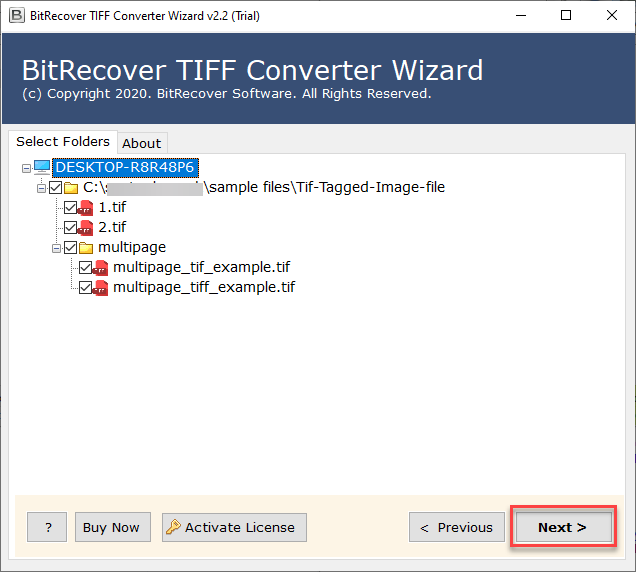
- Check/ Uncheck the folders you require to convert into PDF.
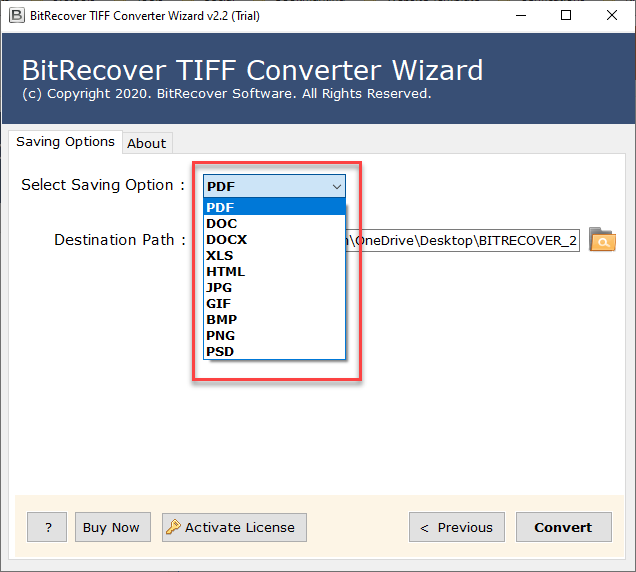
- Then, select the PDF format from the saving options.
- Choose the preferred destination to store the converted files.
- At the end, click the convert button to start the conversion process.
Effective Features of TIFF to PDF Converter
Here are the main features of the converter tool:
- Converts File Without Errors: The tool attempts to convert TIFF to PDF without showing an error message.
- High-Quality Output: This tool is capable to change TIFF to PDF high quality without compromise.
- Dual Upload Options: It has double options for uploading TIFF images in the software UI i.e. Select Files or Select Folders.
- Folder-Wide Conversion: It allows users to save TIFF as PDF from the whole folder.
- Custom Save Destination: The tool automatically chooses Desktop as the destination path but users can also browse different destination locations.
- Live Conversion Process: This application shows a live conversion progress report during the task and after completion, it automatically opens the destination path.
- Separate PDF Creation: This toolkit creates a separate PDF file for each TIFF image so that users can convert multipage TIFF to PDF without confusion.
- Preserves Original Structure: It preserves the original structure of TIFF files during the completion of the task.
Frequently Asked Questions
Q1. Can I save TIFF as PDF in batch using your utility?
Yes, there is no limitation to convert multipage TIFF to PDF in bulk.
Q2. Does it keep all original information while it convert TIFF image to PDF?
Yes, the tool maintains complete original information during the task i.e. Image Quality, Resolution, Text, Color, Graphics and all.
Q3. Can I store resultant PDF files on my external hard drive ?
Yes, first connect your external hard disk with your PC and then browse the destination path from your hard drive.
Conclusion
To conclude, in this blog, we discussed 2+ methods to convert TIFF to PDF, where we explained manual and professional methods to convert the file, where the manual methods are found to be unsuitable for batch conversion, nor is it a secure way to change TIFF to PDF. That is why we explained the professional recommended tool, which is the TIFF to PDF Converter by BitRecover. This tool can convert the file in bulk without losing the data formatting. It works offline after the installation, which ensures your data is protected from being exposed to external servers during the conversion process.
If you want to convert the data in bulk, then you can use the above-mentioned tool. If you have any problems using this tool or want to know more about the tool, then you can contact our support team, who are available for 24/7 to assist you regarding this software.
