Fix Apple Mail App not Working with Best and Safe Method

Published: March 3rd, 2026 • 7 Min Read
When your Apple Mail app not working, it can disrupt your entire workflow especially if email is your primary mode of personal as well as professional communication. Apple Mail is known for its smooth integration with macOS and iOS, but just like any other application it can stop responding due to synchronization failure, internet connection, server-related issues and many more.
If your apple mail stopped working unexpectedly, it may be very frustrating and unsure where to begin troubleshooting. In this blog, we will explore why Apple Mail app not working and what procedures to be followed if Apple Mail stopped working any time.
What is Apple Mail?
Apple Mail is the default email client offered by Apple for macOS, iOS, and iPadOS devices. It supports popular email services such as iCloud, Gmail, Outlook, Yahoo and IMAP/POP-based accounts. Its deep integration with macOS makes it a preferred choice for several users worldwide.
Common Reasons that Apple Mail Stopped Working
If you are facing issues and thinking why is my Apple Mail not working, there could be a list of reasons. Some of those common yet considerable reasons are listed below:
- Temporary internet connectivity issue.
- Incorrect email account settings.
- macOS not updated to the latest versions.
- Corrupted Mail preferences or cache files.
- Overloaded or unresponsive mail servers.
- Conflicts with third party security or VPN software.
- Authentication or password changes by the email provider.
How to Fix Apple Mail App Not Working Issue?
It is important to fix Apple Mail stopped working issues to smoothly manage and organize all the Apple Mail data for smooth communication. Let us discuss some of these fixes.
#1. Check Mail Server Status
You need to confirm whether the mail service itself is experiencing a downtime.
- Firstly, visit Apple System Status.
- Check the status of Mail, iCloud Mail, or your email provider.
- If the service shows an outage, wait until Apple resolves it.
Many Apple Mail issues are server-related and cab be easily fixed automatically.
#2. Check Internet Connection
A stable internet connection is mandatory for Mail to function correctly. Make sure that your WiFi or Ethernet is active. Try opening a website or stream a video to check it. You can switch networks if the connection is unstable. Mail will not sync without an active internet connection.
#3. Restart Apple Mail and You Device
Restarting both Mail app and device can clear some technical glitches and you will no longer face the ‘Apple Mail App not working’ issue.
On Mac:
- Close Apple Mail completely.
- Restart your Mac Machine.
- Now, reopen the Apple Mail App and check if it is now working or not.
On iPhone/iPad:
- Close the Apple Mail App completely.
- Now, restart your device.
- Once started again open Mail App to check if it is working or not.
#4. Update macOS or iOS
- Outdated software is one of the most common causes of Apple Mail not working.
- Initiate with opening System Settings >> General >> Software Update.
- Now, install the latest version of the Apple Mail app.
As, applications frequently release bug fixes that directly improve Mail performance and compatibility.
#5. Verify Email Account Settings
- Checking account settings when emails fail to send or receive.
- First open Mail >> Settings >> Accounts.
- Select the affected account.
- Compare incoming and outgoing server details with your email provider’s official settings.
Sometimes, incorrect ports, authentic types, or server names can break Mail Functionality.
#6. Rebuild Mail Box
when emails appear missing, duplicated or stuck while loading, you can rebuild that particular mailbox.
- Select the Mailbox in Apple Mail.
- Click on Mailbox >> Rebuild.
This recreates the mailbox index and fixes display or synchronization issue without delaying emails.
#7. Check Storage Space on Device
When Apple notes the low storage space on the device, it may prevent Mail from syncing or downloading messages.
- Open System Settings >> General >> Storage.
- Free up space if storage is almost full.
Mail may stop functioning properly when the system lacks storage.
#8. Disable VPN or Security Software Temporarily
Sometimes VPNs, firewalls, or third-part security tools can block mail server corrections.
- Identify the VPN or security software and disable it.
- Restart Apple Mail.
- Now, check if you face the issue again or is it resolved.
If your Mail works, adjust the security software settings accordingly.
These were some manual methods to fix Apple Mail not working. These practical methods usually help to resolve this issue and Apple Mail starts working but sometimes they fail. However, in certain scenarios such as server mailbox corruption, persistent authentication errors, or system-level conflicts these fixes fail to deliver the desired results. In such cases, users are advised to adopt a more reliable and advanced approach that ensures email continuity and prevents any harm to the Apple Mail data.
Still Stuck with Apple Mail App not Working?
Apple Mail Converter developed by the professional and highly qualified developers of BitRecover Software helps you to resolve Apple Mail not working on any Apple Device. It offers a wide range of advanced features that helps users to get an accurate result as per the requirement.
Users just need to download and install the solution on their device and its quick and easy to understand steps will help transform the entire Apple Mail data to a compatible format. You can even migrate your Apple Mail data to another platform or make a backup to keep them safe in the storage itself meanwhile you are reinstalling Apple Mail or making a new account.
Below are the direct link to download the solution on Windows and Mac:
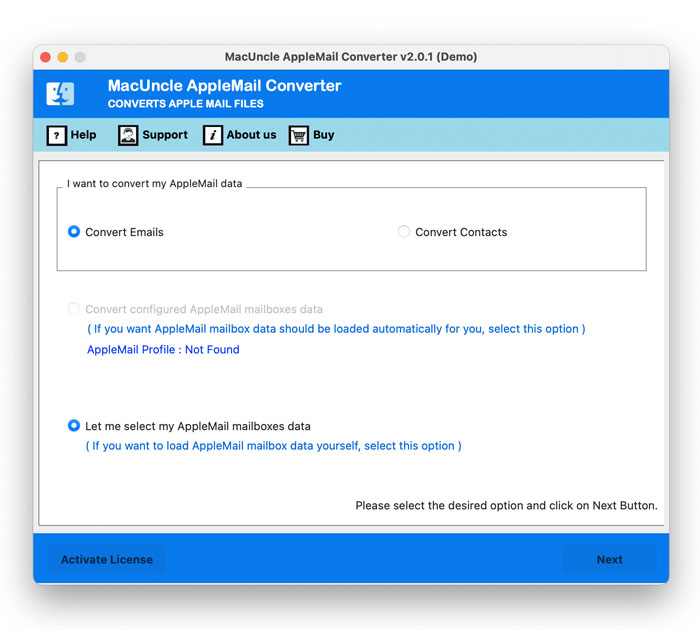
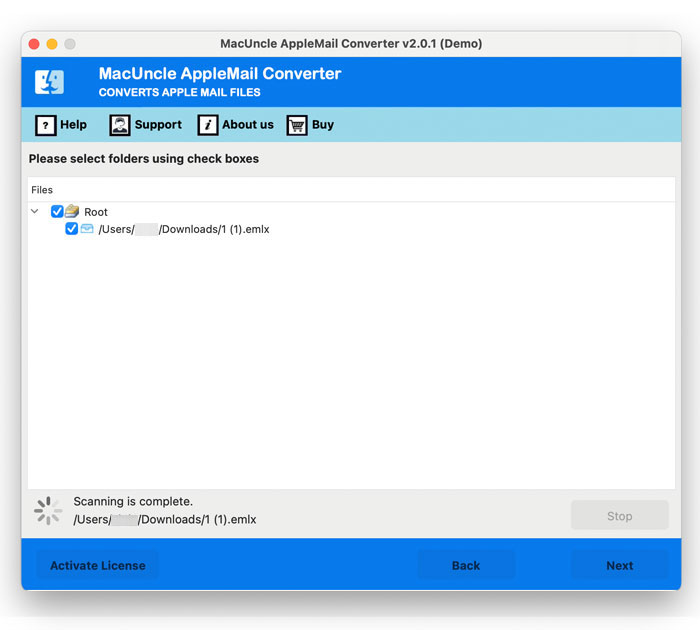
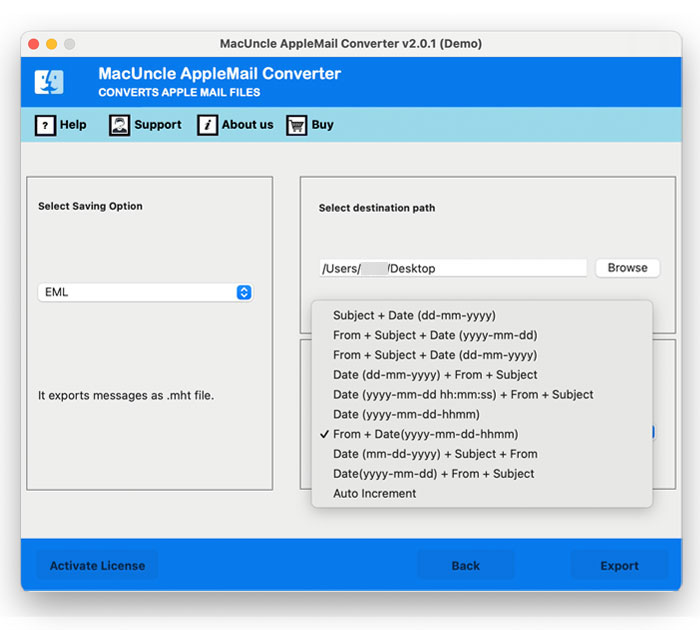
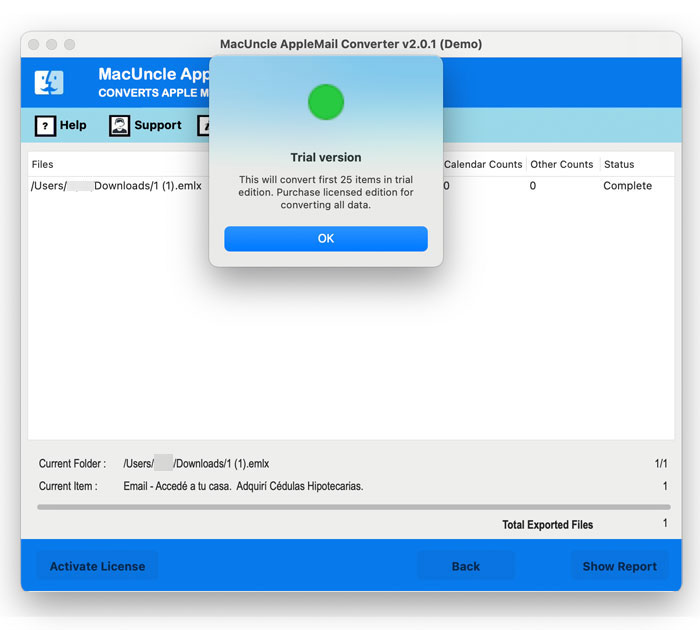
Quick Steps of this Solution to Use it on Mac Machine
- Download and open the solution on your system and choose from the given option to load your data.

- Once Apple Mail data is loaded on the software, check and preview all the data carefully before proceeding for migration.
- Choose a File Format, Destination Location or Name for your final data.
- Once done, click on the Export button to get an accurate results.
Quick Steps of this Solution to Use it on Windows System
- Firstly, download and install the solution on your Windows system.

- After that, choose an option to upload your Mac Mail data into the software.
- Now, preview and check uploaded data before proceeding to convert or make a backup.
- Now choose any format to save all your current emails from Mac Mail to your storage with safety.
- Finally, choose the Destination Path and a name for your final data from File Naming Option.
- Apply Advanced Filters from Filter options if required.
- Lastly, click on the Convert button to proceed.


Why Professionals Choose this Solution Over Manual Techniques?
- Offers dual mode to load Apple Mail files and folders into the software panel.
- Resolves Apple Mail app not working issue with quick and simple steps.
- Maintains the integrity and originality of the complete Apple Mail data.
- Offers compatibility and flexibility to work on Mac Machine as well as Windows.
- A stand alone solution to fix Apple Mail not working issues all by itself.
- Offers 24/7 Technical Support to complete this entire process smoothly.
The Final Words
To fix Apple Mail app not working issue, we have discussed multiple manual methods and a professional solution. The manual approach resolves common problems such as authentication failures, syncing issues or minor glitches. However the professional solution that we have talked about is one of the best solutions to fix this issue permanently. You can choose from either manual methods or professional solution according to your requirements.
Therefore, to discuss or know more about the process or solution related to this solution to overcome any technical issue, you can get in touch with our Technical Support Team anytime.